

Mobile numbers have evolved far beyond simple contact identifiers. Today, when a mobile number is linked to a smartphone with active location services, it becomes a gateway to understanding where the device has been — provided you have legal access and explicit consent.
Whether you’re trying to locate your own lost phone, monitor your child’s safety, or review the travel history of a device you own, there are legitimate ways to access location history.
This guide explores three safe, ethical, and legally compliant methods to view the location history associated with a mobile number:
- Using a Google account
- Using an Apple ID
- Using a parental‑control app like SpyZee
Important Legal & Ethical Note
Tracking someone’s location without their knowledge and consent is illegal in most countries. This guide is strictly for:
- Tracking your own device
- Tracking your child’s device with parental consent
- Tracking a family member’s device with their permission
- Using parental‑control apps responsibly
Nothing in this article supports or encourages unauthorized tracking.
Part 1: How to Track Location History of a Mobile Number
Location history is a record of places a device has visited over time. When a mobile number is linked to a Google or Apple account, or when a parental‑control app is installed, you can review this history safely and legally.
Below are the three most effective methods.
Method 1: Log Into a Google Account Linked to the Mobile Number
Google’s Location History feature creates a detailed timeline of where a device has been. This data is stored only when:
- Location History is turned on
- The device is signed into a Google account
- The device has internet access
- You have permission to access the account
How to View Google Location History
Step 1 — Open Google Maps
Visit maps.google.com or open the Google Maps app.
Step 2 — Sign In
Log into the Google account associated with the mobile number.
Step 3 — Open the Menu
Tap the hamburger icon (three horizontal lines).
Step 4 — Select “Your Timeline”
Choose a date from the calendar to view the device’s past locations.
Google will display:
- Routes traveled
- Places visited
- Time stamps
- Movement patterns
Why You Might Not See Location History
Sometimes Google shows “No visited places” or displays an empty timeline. Common reasons include:
- Location History is turned off
- The device was offline
- The Google account was not signed in
- The device’s GPS was disabled
- Software glitches
How to Fix It
- Turn on Location History in Google Account settings
- Enable Location Services on the device
- Restart the device
- Update Google Maps
- Reinstall the app
- Sign out and sign back in
Method 2: Use the Mobile Number Associated With an Apple ID
For iPhone users, Apple provides a feature called Significant Locations, which stores frequently visited places. This data is encrypted and accessible only on the device itself.
This method works only if:
- You own the device
- You have the passcode
- You have consent to access the Apple ID
How to View Significant Locations on iPhone
Step 1 — Open Settings
Go to Settings → Privacy & Security.
Step 2 — Tap Location Services
Ensure Location Services is enabled.
Step 3 — Open System Services
Scroll down and tap System Services.
Step 4 — Select Significant Locations
You’ll see:
- Frequently visited places
- Time stamps
- Maps of visited areas
Limitations of Apple’s Significant Locations
- Only stores frequently visited places
- Does not show full travel routes
- Data is stored locally, not in iCloud
- Requires device access
Because of these limitations, many parents prefer using a dedicated parental‑control app for more detailed tracking.
Method 3: Track GPS Location History With a Mobile Tracker App (e.g., SpyZee)
If you want more detailed, real‑time, and long‑term location history, a parental‑control app is the most effective option. These apps provide:
- Real‑time GPS
- Location history
- Geofencing alerts
- Safety notifications
- Device‑usage insights
One such tool is SpyZee Parental Control, which offers location tracking as part of a broader digital‑safety suite.
SpyZee: A Safe, Consent‑Based Way to Track Location History
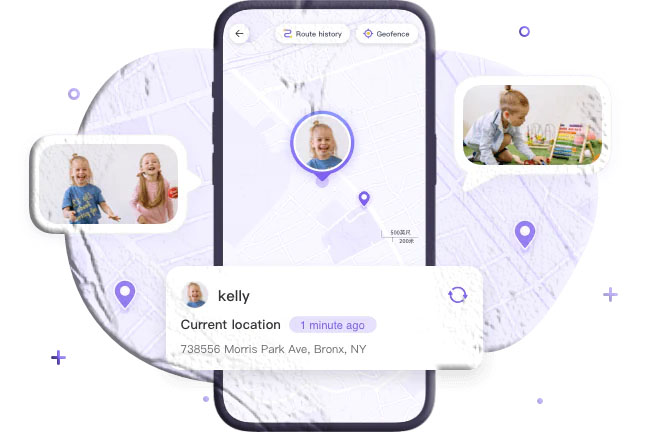
SpyZee is a parental‑control app designed for families who want to monitor their children’s safety responsibly. It does not track phone numbers directly — instead, it tracks the device once the app is installed with consent.
Key Location Features
- Real‑time GPS tracking
- Detailed location history
- Geofencing (safe zones)
- Instant alerts when a child enters or leaves a location
- Timeline of past movements
How to Use SpyZee to View Location History
Step 1 — Install SpyZee on Your Device
Download from the Google Play Store or App Store.
Step 2 — Create an Account
Sign up and log in.
Step 3 — Install SpyZee Kids on the Child’s Device
Follow the setup instructions.
Step 4 — Pair the Devices
Enter the pairing code to link both devices.
Step 5 — View Location History
Open the dashboard to see:
- Where the device has been
- How long it stayed
- Movement patterns
- Geofence alerts
SpyZee provides a more complete picture than Google or Apple alone.
Part 2: Should Parents Track Location History of a Child’s Mobile Number?
Tracking a child’s location history is a sensitive topic. While many parents feel a strong responsibility to ensure their child’s safety, children also deserve privacy and autonomy as they grow. The key is finding a balance that protects children without making them feel controlled or mistrusted.
Below are the main reasons parents may choose to track location history — and the considerations that come with it.
1. Safety and Emergency Awareness
Children, especially younger ones, may not always recognize dangerous situations. Location history helps parents:
- Confirm their child arrived safely at school
- See if they took an unexpected route
- Identify unfamiliar or unsafe locations
- Respond quickly during emergencies
For example, if a child misses the bus or gets lost, location history can help parents retrace their steps.
2. Understanding Daily Routines
Location history provides insight into:
- After‑school activities
- Time spent at friends’ houses
- Travel patterns
- Unexpected detours
This can help parents identify potential risks, such as:
- Spending time in unsafe neighborhoods
- Leaving school early
- Visiting places without permission
3. Supporting Independence With Boundaries
As children grow older, they need space to explore and develop independence. Tracking location history can be used as a safety net, not a surveillance tool.
Parents can:
- Set geofencing alerts
- Review location history only when necessary
- Discuss boundaries openly with their child
Apps like SpyZee allow parents to set safe zones and receive alerts without constantly monitoring every movement.
4. Encouraging Open Communication
Tracking should never be a secret. Children respond better when parents:
- Explain why tracking is used
- Emphasize safety, not punishment
- Set clear expectations
- Reassure them that trust is mutual
This builds a healthier parent‑child relationship and reduces conflict.
5. Legal and Ethical Considerations
Parents are legally allowed to track:
- Their minor child’s device
- A device they own
- A device used with consent
However, tracking another person’s device without permission is illegal in most countries.
Part 3: How to Keep Location History Private
Location history contains sensitive information about where a person lives, works, studies, and travels. If exposed, it can put someone at risk. Protecting this data is essential.
Here are the safest ways to keep location history private.
1. Delete Location History Regularly
Both Google and Apple allow users to delete stored location data.
Google Maps
- Open Google Maps → Your Timeline → Settings → Delete Location History
- Choose Delete today, Delete range, or Delete all time
Apple Significant Locations
- Go to Settings → Privacy & Security → Location Services → System Services → Significant Locations → Clear History
Deleting history reduces the risk of unauthorized access.
2. Turn Off Location History When Not Needed
If you don’t want your device to store location history:
- Go to Google Account → Data & Privacy → Location History → Turn Off
Apple
- Go to Settings → Privacy & Security → Location Services → System Services → Significant Locations → Toggle Off
This prevents new data from being recorded.
3. Use Apps With Strong Privacy Policies
If you use a parental‑control app, choose one that:
- Encrypts data
- Does not sell user information
- Stores data securely
- Allows you to delete data anytime
Apps like SpyZee emphasize data protection and do not share location history with third parties.
4. Protect Your Accounts
To keep location history private:
- Use strong passwords
- Enable two‑factor authentication
- Avoid sharing login details
- Log out of unused devices
Unauthorized access to your Google or Apple account can expose your entire location history.
5. Store Downloaded Data Securely
If you download your location history:
- Store it in encrypted folders
- Avoid cloud storage unless necessary
- Keep backups offline
- Delete files when no longer needed
This prevents sensitive data from being leaked.
Final Words
Mobile numbers have evolved from simple communication tools to powerful digital identifiers. When linked to a smartphone, they can help users access location history, find lost devices, and monitor family safety.
In this guide, we explored:
- How to track location history using Google
- How to view Significant Locations on iPhone
- How parental‑control apps like SpyZee provide real‑time tracking and geofencing
- Why parents may choose to track their child’s location history
- How to keep location history private and secure
Used responsibly, location history can enhance safety, support communication, and help families stay connected. But it must always be used ethically, legally, and with respect for privacy.
FAQs About Tracking Location History
1. Can I track someone’s location history using only their mobile number?
No. You cannot legally or technically track someone’s location history using only their phone number. You need access to their Google account, Apple ID, or a parental‑control app installed with consent.
2. Why can’t I see my Google location history?
Location History may be turned off, the device may have been offline, or the Google account may not be linked properly.
3. Does Apple store full location history?
Apple stores Significant Locations, not full travel routes. It shows frequently visited places, not every movement.
4. Can SpyZee track location history?
Yes. SpyZee provides real‑time GPS tracking, location history, and geofencing alerts — but only when installed with consent.
5. Is it legal to track my child’s location?
Yes. Parents can legally track the devices of their minor children for safety purposes.
6. How do I delete my location history?
You can delete it through Google Maps Timeline or Apple’s Significant Locations settings.
7. Can location history be faked or inaccurate?
Yes. Poor GPS signal, disabled location services, or software glitches can cause inaccuracies.
8. What is the safest way to track location history?
Using your own Google/Apple account or a trusted parental‑control app like SpyZee is the safest and most reliable method.




Add comment