
Children’s screen use can be managed without drama by combining clear rules, device tools, and consistent routines; this guide explains why limits matter, how to use built‑in controls on iPhone and Android, how to interpret usage reports, and how to set up monitoring and schedules with SpyZee as an example.
Why limiting screen time matters
Excessive or poorly structured screen use can crowd out sleep, physical activity, face‑to‑face interaction and focused study, and research links heavy screen exposure to sleep problems, reduced academic performance and higher risk of anxiety or depressive symptoms in some children.
Modern guidance emphasizes quality, context and balance rather than a single universal hour limit: the content children consume and whether screen use displaces essential activities are as important as total minutes. The American Academy of Pediatrics recommends focusing on family media plans and the role of co‑viewing and conversation in shaping healthy habits.
What to measure and why it matters
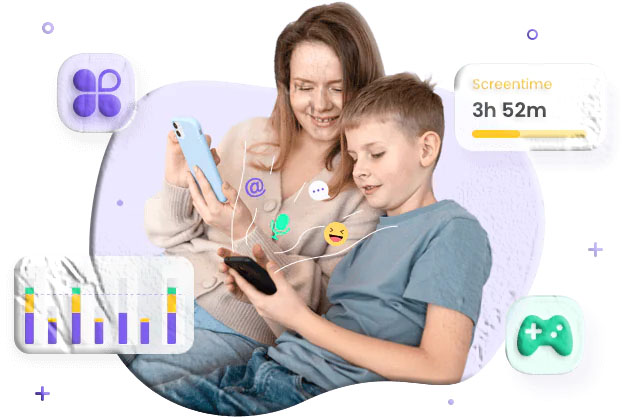
Parents who want to manage screen time effectively should track a few core metrics rather than every second:
- Total daily screen time — shows overall exposure and helps set realistic daily limits.
- App and category breakdown — reveals whether time is spent on learning, socializing, gaming, or passive video.
- Pickups and session length — frequent short pickups suggest habit or boredom; long sessions may indicate immersion or avoidance.
- Nighttime use and sleep interference — screens close to bedtime are strongly associated with poorer sleep.
- Attempts to bypass limits — repeated override attempts signal a need to revisit rules or the child’s readiness for responsibility.
Measuring these elements gives context for conversations and helps parents choose targeted interventions (for example, limiting social apps at night while allowing educational apps during homework time).
Built‑in tools on phones and why to use them
Most modern phones include robust parental controls that let parents set schedules, app limits and content restrictions without third‑party software. Use these first because they integrate with the operating system and are harder to bypass.
iPhone: Screen Time features
iPhone’s Screen Time provides schedules (Downtime), app limits, content restrictions and a weekly activity summary. You can manage a child’s device through Family Sharing and lock settings with a Screen Time passcode. These features let parents block apps during scheduled downtime, set daily limits for app categories, and view combined device activity when “Share Across Devices” is enabled.
Android: Digital Wellbeing and Family Link
Android’s Digital Wellbeing dashboard shows app usage, unlock counts and notifications, and lets you set app timers and enable Focus or Bedtime modes. Family Link extends parental controls by allowing parents to set daily limits, approve app installs from Google Play, and remotely lock a child’s device. These tools are designed to balance device use while preserving device functionality for school and communication.
Using native controls first reduces complexity and avoids unnecessary third‑party dependencies; they also align with platform privacy and security models.
How to design screen time rules that work
Rules should be clear, consistent and age‑appropriate. Use a family media plan to set expectations and revisit it as children mature.
Age‑based starting points
- Under 2 years: avoid screen time except for video calls with caregivers.
- Ages 2–5: prioritize high‑quality, co‑viewed content and limit passive viewing to short, planned sessions.
- Ages 6–12: set daily limits, protect sleep and homework time, and require parental approval for new apps.
- Teens: negotiate boundaries, focus on balance and privacy, and shift toward shared responsibility.
These are starting points; adapt them to your child’s needs and family routines.
Practical rule examples
- Device‑free bedrooms at night — enforce a no‑screens rule at least one hour before bedtime.
- Homework first — require homework and chores before recreational screen time.
- One social app at a time — limit social apps to a single, parent‑approved app for younger teens.
- Weekend allowances — allow extra recreational time on weekends in exchange for outdoor or family activities.
- Earned screen time — link recreational screen minutes to completed tasks or physical activity.
Setting schedules and app limits (step‑by‑step)
Below are practical steps you can implement today using built‑in tools and a monitoring workflow.
- Create a family media plan — write down rules, schedules and consequences; share and sign it with older children.
- Enable native controls — set Downtime and App Limits on iPhone; set App Timers and Bedtime mode on Android.
- Whitelist essential apps — allow school apps, communication with caregivers and emergency contacts at all times.
- Block or limit social and gaming apps during study and sleep windows — use category limits or individual app timers.
- Set a Screen Time passcode or parental PIN — prevent children from changing limits without permission.
- Schedule weekly reviews — review the usage report with your child and adjust rules as needed.
Using SpyZee as an example monitoring workflow
SpyZee is mentioned here as an example of a parental monitoring solution that parents sometimes use alongside native controls to get consolidated reports and remote scheduling options. The steps below describe a typical, neutral setup flow; follow the publisher’s official instructions for the exact screens and permissions.
- Install the parent app — download the monitoring app on the parent device from Google Play or the Apple App Store and create an account.
- Install the companion on the child’s device — follow the app’s prompts to grant permissions for usage data and app access.
- Bind devices — link the child’s device to the parent account using the app’s pairing code or QR process.
- Configure screen time rules — set daily limits, schedules and allowed apps from the parent dashboard.
- Enable alerts — receive notifications when a child attempts to access a blocked app or reaches a limit.
- Review reports together — use weekly summaries to guide calm, fact‑based conversations.
SpyZee is one example; many parents prefer to combine native OS controls with a monitoring app for consolidated reporting and remote lock features. Search for SpyZee on Google Play or the Apple App Store to view the publisher’s current feature list and installation instructions.
Interpreting screen time reports: what to look for
Reports are data, not verdicts. Use them to guide conversation and action.
- High total time with low educational content — consider swapping recreational minutes for creative or educational apps.
- Late‑night spikes — enforce stricter bedtime rules and remove devices from bedrooms.
- Many short pickups — this pattern often reflects habit or boredom; introduce device‑free activities and scheduled breaks.
- Rapid increases after holidays or new app installs — investigate whether a new app or social group is driving the change.
- Repeated override attempts — treat this as a readiness signal: either tighten controls or negotiate more responsibility.
When you discuss findings, focus on curiosity and problem‑solving: “I noticed you’re opening X app a lot after dinner; what’s happening there?” rather than immediate punishment.
Building healthy habits beyond limits
Limits work best when paired with positive alternatives and modeling.
- Create device‑free rituals — family meals, walks, reading time and board games replace passive screen minutes.
- Model balanced use — parents who limit their own device use set a powerful example.
- Teach self‑regulation — involve older children in setting their own limits and reviewing progress.
- Encourage hobbies — sports, music, art and clubs provide natural screen‑free engagement.
- Use screens for shared activities — co‑watching educational content or playing cooperative games can be social and instructive.
Geofencing, app blockers and location‑aware limits
Some families use geofencing and app blockers to enforce location‑based rules:
- School mode — automatically restrict recreational apps during school hours or when the child is on campus.
- Study zones — lock distracting apps when the child enters a designated study area at home.
- Bedtime geofence — combine geofence with a schedule to lock devices when the child is in their bedroom at night.
These features are powerful but require careful setup and testing to avoid false positives (for example, when a child visits a friend’s house).
Troubleshooting common problems
- Child bypasses limits with another device — monitor all devices the child uses and set household rules for shared devices.
- VPNs or private browsers hide activity — block VPN apps and use device‑level controls or network filters to reduce bypass options.
- App timers reset at midnight — set expectations around daily limits and consider cumulative weekly allowances for special occasions.
- Battery drain from monitoring apps — reduce monitoring frequency or schedule checks when the device is charging.
- Missing data in reports — confirm permissions, ensure the child’s device is online and that the monitoring app is up to date.
Evidence and health guidance
Research shows a complex relationship between screen time and child development: while screens can support learning and social connection, excessive or poorly timed use is associated with sleep disruption, reduced physical activity and, in some studies, lower academic performance. Interventions that focus on balance, content quality and family routines tend to produce better outcomes than rigid time caps alone.
Practical daily schedules and examples
Below are sample schedules you can adapt by age and family needs.
Sample schedule for school‑age children (6–12)
- Before school: 30 minutes for news or educational apps (parent‑approved).
- After school: 30–60 minutes of recreational screen time after homework and chores.
- Evening: Device‑free family time and dinner.
- Night: Devices in a charging station outside bedrooms one hour before bedtime.
Sample schedule for teens (13–17)
- Weekdays: Homework and extracurriculars first; 60–90 minutes recreational time after responsibilities.
- Weekends: Extended recreational time with a cap (for example, 3 hours) and at least one outdoor or social activity.
- Night: No social apps after 10:00 PM; emergency contact apps allowed.
Adjust these schedules to match school demands, extracurriculars and family rhythms.
Communication scripts for difficult conversations
- When limits are exceeded: “I see your screen time went up this week. Tell me what changed so we can decide what to adjust.”
- When a child resists: “I want you to have time to relax online, but I also want you to sleep well and finish homework. Let’s agree on a plan.”
- When you find concerning content: “I found X in your history. I’m not angry; I want to understand what happened and how I can help.”
Keep tone calm, curious and collaborative.
FAQs
What is a healthy amount of screen time for children? There is no single number that fits every child; guidance emphasizes quality and context. For very young children, avoid non‑interactive screen time; for preschoolers, limit passive viewing and co‑view high‑quality content. For school‑age children and teens, prioritize balance so screens do not replace sleep, physical activity or social interaction.
Can built‑in tools fully replace monitoring apps? Built‑in tools cover most needs—schedules, app limits and content filters—and are the recommended first line of control. Monitoring apps can add consolidated reporting and remote lock features, which some parents find helpful for multi‑device households.
Will strict limits make my child secretive or rebellious? Overly punitive or opaque rules can increase secrecy. Combine limits with open discussion, negotiated boundaries and gradual increases in responsibility to reduce resistance.
How do I handle a child who repeatedly bypasses limits? Investigate the reason: boredom, social pressure or a new app. Tighten technical controls if needed, but also address the underlying cause through conversation and alternative activities.
Are there health risks from screen time? Excessive screen time is associated with sleep disruption, reduced physical activity and, in some studies, negative effects on attention and academic performance. Balance and content quality mitigate many risks.
How often should I review screen time reports? Weekly reviews are a practical cadence for most families; check more often if you notice sudden changes in behavior or usage patterns.
Checklist: quick setup for parents
- Create a family media plan and write it down.
- Enable native controls on iPhone (Screen Time) or Android (Digital Wellbeing/Family Link).
- Whitelist essential apps and set Downtime/Bedtime schedules.
- Set app limits for social and gaming categories.
- Use a monitoring app like SpyZee if you want consolidated reports and remote lock features; install parent and child apps and bind devices.
- Schedule weekly reviews and discuss findings calmly.
- Model balanced device use and create device‑free family rituals.
Troubleshooting quick fixes
- No data appearing: confirm permissions and internet connectivity on the child’s device.
- Limits ignored: set a Screen Time passcode or parental PIN and change it regularly.
- VPN or private browsing: block VPN apps and use device‑level controls.
- Battery drain: reduce monitoring frequency and schedule checks while charging.
Final notes on balance and progression
Limiting screen time is not an end in itself; it’s a tool to protect sleep, learning and social development while allowing children to benefit from digital resources. Start with clear, age‑appropriate rules, use native OS controls, add monitoring only if needed, and keep conversations regular and non‑punitive. Research supports focusing on quality, context and family routines rather than rigid minute counts.