
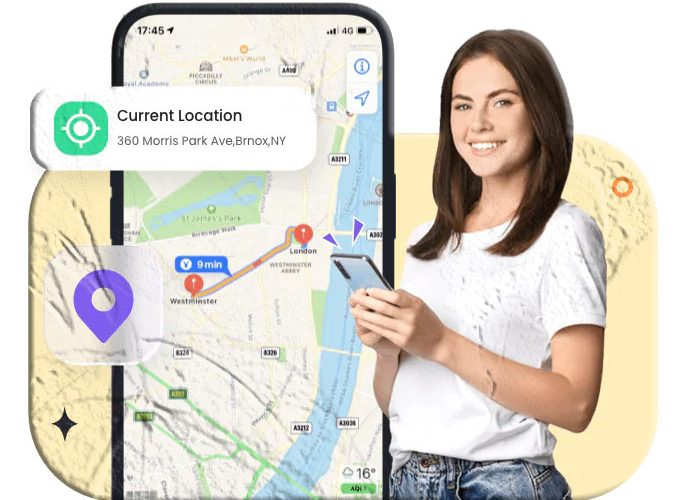
Parents who want clear, practical control over where their children go can use a location tracker to reduce worry and respond faster when something seems off. This guide explains how SpyZee’s Location Tracker works, how to set it up, how to use geofences and location history effectively, and how to balance monitoring with respect for a child’s privacy. The instructions are written for everyday caregivers and assume no technical background.
What the Location Tracker Does
A location tracker gives you a live view of a device’s geographic position, a timeline of past locations, and the ability to define safe zones that trigger alerts when crossed. SpyZee combines these capabilities into a single set of tools so parents can:
- See a child’s current location in real time.
- Create geofences and receive entry or exit alerts.
- Review location history to understand movement patterns.
- Use location data to improve communication and respond quickly in emergencies.
SpyZee is presented as a parental control solution that includes location tracking among other monitoring features.
Why Location Tracking Matters for Families
Location tracking is not about constant surveillance; it’s about situational awareness. When used thoughtfully, it helps parents:
- React faster in emergencies. Knowing a child’s last known location shortens the time needed to find them or to give accurate information to responders.
- Confirm safe arrival and departure. Parents can verify that a child reached school, a friend’s house, or an activity center.
- Set boundaries that support independence. Geofences let children move within agreed areas while alerting parents if they stray beyond those limits.
- Understand routines and patterns. Location history reveals regular routes and places visited, which can highlight changes that merit a conversation.
Core Location Features Explained
Live Location
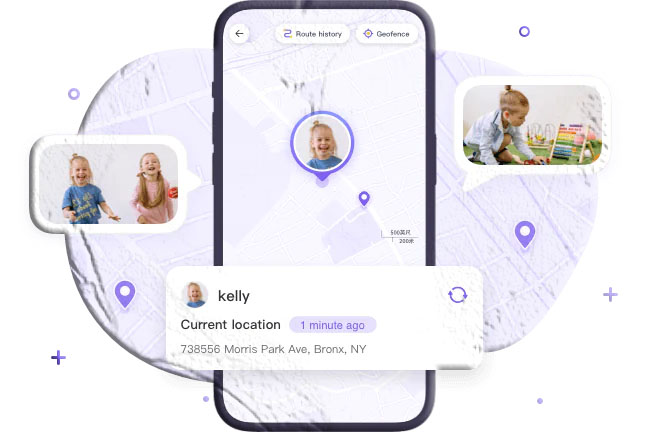
Live Location shows the child’s current position on a map and updates as they move. The update frequency depends on device settings, network conditions, and GPS availability. Live Location is useful for immediate checks—confirming whether a child is on the school grounds, on a bus route, or at a planned destination.
Geofence
A geofence is a virtual boundary drawn on a map. When a child’s device crosses that boundary, the parent receives an alert. Geofences are useful for:
- Marking home, school, or a trusted caregiver’s house.
- Creating temporary zones for events or outings.
- Receiving automatic notifications without needing to check the map constantly.
Location History
Location History stores past location points and displays them in a timeline. This helps parents see where a child has been during a day, how long they stayed in each place, and whether their route matches expectations.
How Location Tracking Works Technically
Location tracking typically uses a combination of GPS, Wi-Fi, and cellular data to determine a device’s position. GPS provides the most precise coordinates outdoors, while Wi-Fi and cell tower triangulation can help indoors or when GPS signals are weak. SpyZee’s Location Tracker is built to display coordinates on a map interface and to log those coordinates for history and geofence triggers.
Step-by-Step Setup Guide
Follow these steps to set up SpyZee Location Tracker on a parent device and a child device. The exact wording in the app may vary, but the overall flow is consistent.
1. Install the App on the Parent Device
Download and install the SpyZee parent app from the official app store for your device. Search for SpyZee in Google Play or the Apple App Store to find the official listing and read the latest permissions and reviews.
2. Create an Account and Sign In
Open the app, register with an email address and a secure password, and sign in on the parent device.
3. Install the Companion App on the Child Device
Follow the app’s instructions to install the child-side companion app on the child’s phone. The child device must grant the permissions required for location tracking and geofence alerts.
4. Pair the Devices
Use the in-app binding process to link the child device to the parent account. This often involves entering a code shown on the parent device into the child device or scanning a QR code.
5. Grant Required Permissions
On the child device, grant location access, background location permission (if available), and any other permissions the app requests for geofencing and history logging. For features like geofence alerts to work reliably, allow the app to run in the background and to access location at all times if the platform supports that option.
6. Configure Geofences and Alerts
From the parent app, open the Live Location or Geofence section, add a new geofence, choose a center point, set a radius, and name the zone. Save the geofence and confirm that alerts are enabled.
7. Test the Setup
Walk through a short test: move the child device across a geofence boundary and confirm that the parent device receives an alert. Check that live location updates and location history entries appear as expected.
Permissions Checklist
To ensure reliable tracking, confirm the following on the child device:
- Location services enabled.
- Background location permission granted.
- Battery optimization disabled for the app (or set to allow the app to run in the background).
- Network access allowed (Wi-Fi or mobile data) for map updates and alerts.
- App notifications enabled so geofence alerts appear on the parent device.
Practical Use Cases
Daily Routines
Use Live Location to confirm that a child arrived at school or a scheduled activity. Geofences around school and home reduce the need to check the map constantly.
After-School Activities
When children attend classes or sports, geofences can notify parents when they arrive and when they leave, helping coordinate pickups and reducing waiting time.
Travel and Outings
For longer trips or outings with friends, geofences and location history provide a timeline that helps parents verify safe arrival and departure times.
Emergency Response
If a child is lost or in danger, location history and live coordinates give parents and responders a starting point for search and rescue.
Balancing Monitoring and Trust
Location tracking works best when combined with clear communication. Consider these approaches:
- Explain the purpose. Tell children why you use location tracking and what you will do with the information.
- Agree on boundaries. Set geofences and rules together so children understand expectations.
- Use data for conversations. Share location history during calm moments to discuss routines and safety.
- Scale back over time. As children demonstrate responsibility, relax geofences and reduce frequency of checks.
Troubleshooting Common Issues
Location Not Updating
- Confirm location services are enabled on the child device.
- Check that the app has background location permission.
- Ensure the child device has network access.
- Disable aggressive battery optimization for the app.
Geofence Alerts Not Triggering
- Verify the geofence radius is large enough to account for GPS variance.
- Confirm the app has permission to run in the background.
- Test with a short walk across the boundary to ensure the alert fires.
Location History Missing Entries
- Check whether the app was allowed to log locations during the period in question.
- Confirm the child device had network access and location services enabled.
- Review app settings for history retention limits.
Geofence Design Best Practices
- Start with meaningful places. Home, school, and a trusted caregiver’s address are good first geofences.
- Choose sensible radii. A geofence that’s too small may trigger false alerts due to GPS drift; a radius of 100–300 meters often balances precision and reliability.
- Use time windows. Combine geofences with schedules so alerts are only active during relevant hours (for example, school hours).
- Name geofences clearly. Use labels like “School,” “After-school club,” or “Grandma’s house” to avoid confusion.
How Location History Helps Parents
Location history is more than a list of coordinates. It shows patterns: where a child spends time, how long they stay, and whether their routes change. Use history to:
- Spot new places that may need discussion.
- Confirm that a child’s route home is the usual one.
- Identify times when a child spends unusually long periods away from home.
Privacy and Legal Considerations
Laws about monitoring vary by jurisdiction. Parents should be mindful of local rules and the age of the child. For older teens, open conversations and mutual agreements about monitoring are often more effective than covert tracking. When in doubt, consult local guidance about consent and privacy.
Compatibility and Platform Notes
Feature availability can differ between Android and iOS because of platform-level permission models. Some features—like continuous background location or certain types of screen capture—may require additional permissions or behave differently depending on the operating system. Check the app listing on Google Play or the Apple App Store for the most current compatibility details and permission requirements.
Real-World Examples
Example 1: School Pickup Coordination
A parent sets a geofence around the school and receives an alert when the child leaves the school grounds. The parent times their arrival to meet the child at the gate, reducing waiting time and stress.
Example 2: After-School Activities
A child attends a music lesson at a community center. The parent sets a geofence around the center and receives an alert when the child arrives and when they leave, ensuring the child is where they said they would be.
Example 3: Weekend Outing with Friends
When teens go out with friends, parents can set temporary geofences around the event location and enable alerts for the duration of the outing. This provides reassurance without constant checking.
How to Interpret Location Data
- Single points are snapshots. A single coordinate shows where the device was at a moment in time. Use history and live updates to build context.
- GPS drift happens. Small inaccuracies are normal; don’t assume a child is off-course because of a single errant point.
- Combine data sources. If available, use timestamps, Wi-Fi names, and other context to understand location entries.
Safety Checklist for Parents
- Confirm the child device has location services enabled.
- Grant the app background location permission.
- Disable battery optimizations that stop background apps.
- Set geofences for home and school.
- Test alerts and live updates.
- Review location history weekly and discuss any concerns.
How to Talk to Children About Location Tracking
- Explain the purpose in simple terms: to keep them safe and to help coordinate plans.
- Reassure them that tracking is not punishment but a safety measure.
- Agree on boundaries and times when tracking will be active.
- Invite their input on geofence locations and names.
- Revisit the agreement as they grow older and demonstrate responsibility.
Limitations to Keep in Mind
- Battery and connectivity affect accuracy. If the child’s phone is off, out of battery, or in airplane mode, live location will not update.
- Indoor accuracy is lower. GPS is less reliable indoors; Wi-Fi and cell data help but are not perfect.
- Platform restrictions vary. iOS and Android handle background location differently, which can affect update frequency.
When to Use Location Data Beyond Safety
- Coordinate logistics. Use live location to plan pickups and drop-offs.
- Teach navigation. Show older children how to read maps and plan routes using the same tools.
- Build trust. Share location history during family check-ins to discuss routines and responsibilities.
How to Remove or Pause Tracking
Most parental control systems let parents pause tracking or remove a device from monitoring. To pause tracking:
- Open the parent app.
- Select the child profile.
- Choose the option to pause or disable location tracking.
To remove tracking entirely, unbind the child device from the parent account and uninstall the child-side app.
Data Retention and History Limits
Location history retention varies by app. Some apps store several days of history, while others keep longer timelines. Check the app’s settings to understand how many days of history are available and whether you can export or delete entries.
Safety Scenarios and Recommended Responses
Scenario: Child Leaves Geofence Unexpectedly
- Call the child immediately to confirm their status.
- If unreachable, check recent location history for movement patterns.
- If the situation appears dangerous, contact local authorities and provide the last known coordinates.
Scenario: Location Stops Updating
- Ask the child to check their phone’s battery and network connection.
- Confirm the app has the necessary permissions and is allowed to run in the background.
- If the device is offline, use the last known location as a starting point.
Scenario: Repeated Unexplained Stops
- Review location history to identify where the child is spending time.
- Discuss the pattern calmly with the child to understand the reason.
- Adjust geofences or rules if needed.
Comparing Location Tools at a Glance
| Feature | Live Location | Geofence | Location History |
|---|---|---|---|
| Purpose | Real-time position | Boundary alerts | Timeline of past locations |
| Best use | Immediate checks | Automatic notifications | Pattern analysis |
| Limitations | Requires connectivity | GPS drift possible | Retention limits vary |
Finding SpyZee on App Stores
To view the latest app details, permissions, and user reviews, search for SpyZee on Google Play or the Apple App Store. The official listings provide current compatibility information and installation instructions.
Frequently Asked Questions
How do I install the Location Tracker?
Install the parent app from the app store, create an account, install the child companion app on the child’s device, and follow the in-app binding steps. Grant the requested permissions on the child device to enable location tracking.
Is tracking my child legal?
Parents generally have the right to monitor their minor children’s devices for safety. Laws vary by location and by the age of the child. For older teens or shared devices, discuss monitoring openly and consider local legal guidance.
How often does the location update?
Update frequency depends on device settings, platform permissions, and network conditions. With background location enabled and a stable connection, updates can be near real time.
How do I set a geofence?
Open the Live Location or Geofence section in the parent app, add a new geofence, choose a center point, set a radius, name the zone, and save. Test the geofence by moving the child device across the boundary.
How far back can I view location history?
History retention varies by app. Some apps store two weeks of history, others longer. Check the app’s settings for the exact retention period.
What if the child turns off location services?
If location services are off, live updates stop. Use the last known location and contact the child directly. Discuss expectations about keeping location services enabled for safety.
Can I manage multiple children from one account?
Most parental control apps allow multiple child profiles under a single parent account so you can manage settings and view reports for each child separately.
Final Checklist Before You Start
- Install the parent and child apps from the official app store.
- Create and secure your account with a strong password.
- Grant background location and notification permissions on the child device.
- Set geofences for home and school.
- Test alerts and live updates.
- Review location history regularly and discuss findings with your child.
Closing Thought
Location tracking is a practical tool for reducing uncertainty and improving response times when a child’s whereabouts matter. When combined with clear communication and age-appropriate boundaries, it supports both safety and growing independence. Would you like a printable checklist tailored to your child’s age and daily routine?
External Resources
- Search for SpyZee on Google Play to view the Android app listing.
- Search for SpyZee on the Apple App Store to view the iOS app listing.
Author note
This guide focuses on practical steps and everyday scenarios for using a location tracker like SpyZee to support family safety and communication.