
Introduction
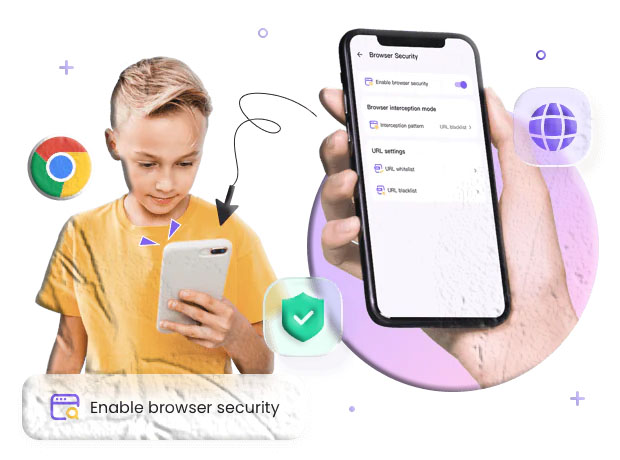
Parents today face a constant stream of questions about how children use the internet: what sites they visit, which searches they run, and whether they encounter harmful content. Browser monitoring gives caregivers a clear, organized view of web activity so they can spot patterns, set boundaries, and teach safer habits. This guide explains how browser monitoring works, what features to expect, how to set it up using SpyZee as an example, and how to interpret and act on the data you collect. Practical, neutral, and written for everyday readers, the article focuses on clear steps and real-world scenarios parents can use right away.
What Browser Monitoring Actually Tracks
Browser monitoring records the web activity that happens on a device and presents it in a way that’s easy to review. Typical items captured include:
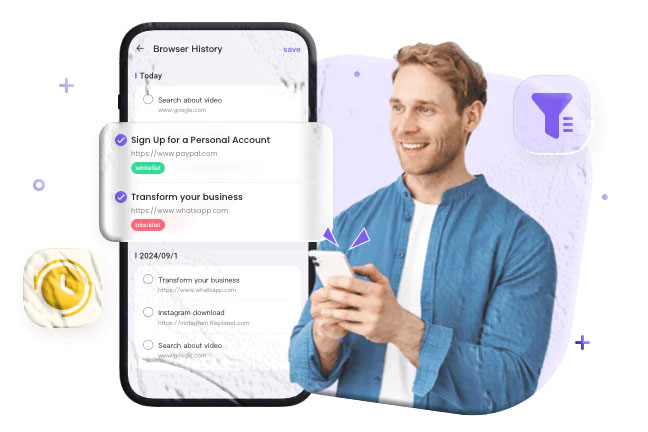
- Visited URLs — the exact web addresses a device has opened.
- Page titles — the headline or title of the page visited.
- Search queries — the words typed into search engines.
- Visit timestamps — when a page was opened and for how long it remained active.
- Visit frequency — how often a site is visited over time.
- Category labels — automatic grouping of sites into categories like social media, gaming, adult content, news, or shopping.
Together, these data points create a timeline of browsing behavior that helps parents understand what their child sees online and how often they return to particular sites.
Why Parents Use Browser Monitoring
Parents choose browser monitoring for several practical reasons:
- Spot recurring exposure — repeated visits to a single site can indicate a habit or a problem that needs attention.
- Detect risky searches — search queries can reveal curiosity about dangerous topics or attempts to find ways around rules.
- Block harmful content — monitoring tools often include filters and blockers to prevent access to explicit or malicious sites.
- Support conversations — concrete records make it easier to discuss concerns calmly and factually.
- Protect vulnerable family members — older relatives or younger children can be shielded from scams, phishing, and inappropriate material.
Monitoring is most effective when combined with open communication and clear family rules about acceptable browsing.
Core Browser Monitoring Features to Expect
When evaluating a browser monitoring solution, look for these core capabilities:
- Real-time history sync — the ability to see recent browsing activity quickly.
- Search tracking — capture of search engine queries and the results clicked.
- Category-based filtering — automatic grouping of sites so you can block entire categories (e.g., adult content, gambling).
- Whitelist and blacklist controls — the option to explicitly allow trusted sites and block specific URLs.
- Notifications and alerts — configurable alerts for visits to blocked or risky categories.
- Reporting and summaries — weekly or monthly overviews that highlight trends and top sites.
These features let you move from raw data to actionable decisions: blocking a site, opening a conversation, or adjusting filters.
How SpyZee Frames Browser Monitoring
SpyZee is referenced here as an example of a parental monitoring solution that includes browser monitoring among its features. Many monitoring apps present browsing history in a chronological list, allow category-based filtering, and provide controls to whitelist or blacklist sites. For parents who prefer an app-based workflow, searching for SpyZee on Google Play or the Apple App Store will show the publisher’s installation and setup guidance.
Some monitoring services emphasize a few common strengths: clear visit logs, search capture, and the ability to block or filter content. When you review an app’s feature list, check whether it captures search queries, whether it labels sites by category, and how quickly the dashboard updates after a browsing session.
Step-by-Step: Setting Up Browser Monitoring with SpyZee (Example Workflow)
Below is a general setup flow that reflects how browser monitoring is typically enabled in parental control apps. Exact steps and wording may vary by app version and device operating system.
- Create an account
- Search for SpyZee on Google Play or the Apple App Store and follow the publisher’s sign-up instructions. Use a secure email and a strong password.
- Install the parent app
- Install the monitoring app on the device you will use to review activity (your phone or tablet). Sign in with the account you created.
- Prepare the child’s device
- Have the child’s device available for setup. Grant the app the permissions it requests to access browsing history and related data. On Android, this typically includes permission to read browser history and run in the background; on iOS, the available features depend on the operating system and the app’s integration options.
- Pair or bind devices
- Use the app’s pairing process to link the child’s device to your monitoring account. This may involve entering a code, scanning a QR code, or signing into the child’s device briefly.
- Configure filters and blocks
- Set category filters (for example, block adult content or gambling), add trusted sites to a whitelist, and add specific URLs to a blacklist.
- Enable notifications
- Turn on alerts for visits to blocked categories or for searches that match sensitive keywords.
- Verify data flow
- Open your dashboard and confirm that recent browsing activity appears. Allow time for the first sync; some apps take a few minutes to collect and upload initial history.
- Set a review routine
- Decide how often you’ll check logs—daily, weekly, or after any concerning sign—and who in the household will have access to the monitoring account.
Interpreting Browsing Data: What to Look For
Raw browsing logs are useful only when interpreted with context. Use these approaches to make sense of the data:
- Patterns over time — a single visit to a questionable site may be curiosity; repeated visits are more meaningful.
- Search intent — search queries often reveal intent more clearly than the page title alone. For example, “how to block caller” is different from “how to make a bomb.”
- Timing and frequency — late-night browsing or frequent short visits can indicate secretive behavior or compulsive use.
- Sequence of activity — a search followed by visits to multiple related sites suggests deeper interest.
- Cross-check with other signals — changes in mood, school performance, or social behavior can corroborate concerns raised by browsing logs.
Always use logs as a starting point for conversation rather than as definitive proof of wrongdoing.
Website Blocking and Filtering: How They Work
Website blockers and filters operate at different levels and with different strengths:
- Browser-level extensions — block sites within a specific browser but can be bypassed by using another browser or private mode.
- Device-level controls — installed on the device and able to block across browsers and apps.
- Network-level filters — applied at the router or DNS level to block sites for all devices on a home network.
- Category-based filters — use databases that classify sites into categories (adult, gambling, social, etc.) and block entire categories.
- Custom blacklists/whitelists — let parents block or allow specific URLs regardless of category.
Choose the level that matches your goals: device-level controls are harder for a determined child to bypass than browser extensions, while network-level filters protect every device on the home Wi‑Fi.

Fine-Tuning Filters: Balancing Safety and Freedom
Overly strict filters can frustrate children and encourage workarounds; overly lax filters can expose them to harm. Use these strategies to strike a balance:
- Start with categories — block high-risk categories (adult content, illegal activity) and allow educational and school-related categories.
- Whitelist trusted educational sites — add school portals, research sites, and favorite learning platforms to a whitelist.
- Use age-appropriate settings — many tools offer presets for different age groups; use them as a baseline and adjust as needed.
- Allow supervised exceptions — when a child needs access to a blocked site for homework, temporarily allow it and review the content together.
- Review and adjust — revisit filters monthly to reflect changing needs and maturity.
Openly explain the reasons for filters so children understand the goal is protection and learning, not punishment.
Common Challenges and How to Solve Them
- Private browsing and incognito modes — some monitoring tools capture history even when private mode is used; others do not. If private mode is a concern, use device-level or network-level filters that block access regardless of browser mode.
- Multiple browsers — ensure the monitoring solution covers all browsers installed on the device.
- VPNs and proxy services — VPNs can hide browsing activity; consider blocking VPN apps or using network-level controls that detect and restrict VPN traffic.
- Multiple devices — if a child uses a phone, tablet, and laptop, monitor each device to get a complete picture.
- False positives — not every flagged site is harmful; review context before acting and discuss findings calmly.
Addressing these challenges often requires a combination of technical controls and family agreements.
Practical Scenarios and How to Respond
Scenario 1 — Repeated Visits to a Single Social Site
If a child repeatedly visits a social site late at night, ask open questions: who are they talking to, what do they like about the site, and how does it make them feel? Consider setting time limits and discussing safe messaging practices.
Scenario 2 — Searches for Harmful Content
If search queries suggest curiosity about self-harm or dangerous activities, prioritize a supportive conversation and seek professional help if the child expresses intent or distress.
Scenario 3 — Exposure to Scams
If an elderly relative’s browsing shows repeated visits to suspicious financial sites, block those URLs, explain common scam tactics, and help them report the activity to the appropriate authorities.
Scenario 4 — School Research Blocked by Filters
If a child needs access to a blocked site for homework, temporarily whitelist the site and review the content together to ensure it’s appropriate.
Combining Monitoring with Education
Monitoring is most effective when paired with education:
- Teach critical thinking — show children how to evaluate sources and spot misinformation.
- Discuss privacy — explain why personal information should not be shared online.
- Model good behavior — demonstrate healthy screen habits and balanced device use.
- Set clear rules — agree on screen time, acceptable sites, and consequences for rule-breaking.
- Encourage reporting — make sure children know how to tell a trusted adult if something online makes them uncomfortable.
These conversations build digital resilience and reduce the need for heavy-handed monitoring over time.
Data Security and Account Management
Protect the monitoring account and the data it holds:
- Use a strong, unique password for the monitoring account.
- Enable two-factor authentication if available.
- Limit account access to trusted caregivers only.
- Review app permissions regularly and remove any unnecessary access.
- Keep software updated to ensure the latest security patches are applied.
Treat monitoring data as sensitive information and handle it with the same care you would any personal record.
What Browser Monitoring Does Not Do
Understanding limitations prevents unrealistic expectations:
- It does not read minds — browsing logs show behavior, not intent.
- It does not always capture private or encrypted traffic — some apps and services encrypt content or use private channels that monitoring cannot access.
- It does not replace conversation — logs are a tool for discussion, not a substitute for trust-building.
- It may not capture activity on other networks — if a child uses a different Wi‑Fi network or cellular data, network-level filters won’t apply.
Use monitoring as one part of a broader safety strategy.
SpyZee and App Store Availability
SpyZee is mentioned here as the example monitoring solution used throughout this guide. To find the app, search for SpyZee on Google Play or the Apple App Store and follow the publisher’s installation and setup instructions. App store listings provide the most current compatibility and feature details for Android and iOS devices.
When reviewing any app listing, check the feature list for browsing history capture, filtering and blocking options, and the permissions required. Publisher documentation and app store descriptions often include setup guides and support resources.
Frequently Asked Questions
What exactly does browser monitoring record? Browser monitoring typically records visited URLs, page titles, search queries, timestamps, and visit frequency. Some tools also categorize sites automatically so you can block entire categories at once.
Will monitoring slow down the device? Most modern monitoring apps are designed to run efficiently; however, older devices may experience some performance impact. Keep apps updated and review permissions to minimize any slowdown.
Can a child bypass filters with a VPN? VPNs can hide browsing activity. To reduce this risk, block VPN apps at the device or network level and use filters that detect and restrict VPN traffic.
Is it legal to monitor my child’s browsing? Parents generally have the right to monitor minor children’s devices, but laws vary by location. For adults or shared devices, obtain consent and check local regulations.
How do I handle sensitive findings? Approach the conversation calmly, focus on safety, and avoid punitive reactions. If the findings suggest immediate danger or self-harm, seek professional help.
Do monitoring tools record private messages or encrypted chats? Most browser monitoring tools capture web activity and searches; encrypted messaging apps may not be fully visible unless the monitoring solution includes specific integrations for those apps.
How often should I review logs? There’s no single rule. Weekly reviews are common, with additional checks after any concerning sign. Balance oversight with respect for growing independence.
Choosing the Right Approach for Your Family
Every family is different. Consider these factors when choosing how to monitor:
- Age and maturity — younger children need stricter controls; teens benefit from negotiated boundaries.
- Technical savvy — if your child is tech-savvy, prefer device-level or network-level controls that are harder to bypass.
- Household dynamics — involve caregivers in decisions and agree on who has access to monitoring data.
- Goals — are you aiming to prevent exposure to explicit content, reduce screen time, or detect bullying? Choose tools and settings that match those goals.
A thoughtful approach reduces conflict and increases the chance that monitoring will lead to positive outcomes.
Final Checklist Before You Start
- Confirm local rules about monitoring and consent.
- Choose the right level of control (browser, device, or network).
- Install and configure the monitoring app on both parent and child devices.
- Set filters and blocks based on age-appropriate categories.
- Enable alerts for visits to risky categories or suspicious searches.
- Secure the account with a strong password and two-factor authentication.
- Plan conversations about why monitoring is in place and how it will be used.
This checklist helps you start monitoring in a way that’s practical and respectful.
Closing Thoughts
Browser monitoring gives parents a clearer view of how children use the web and a practical way to reduce exposure to harmful content. When combined with education, open communication, and thoughtful rules, monitoring becomes a tool for learning and protection rather than surveillance. SpyZee is used here as an example of a monitoring solution; search for SpyZee on Google Play or the Apple App Store to review the publisher’s current setup instructions and feature list.