
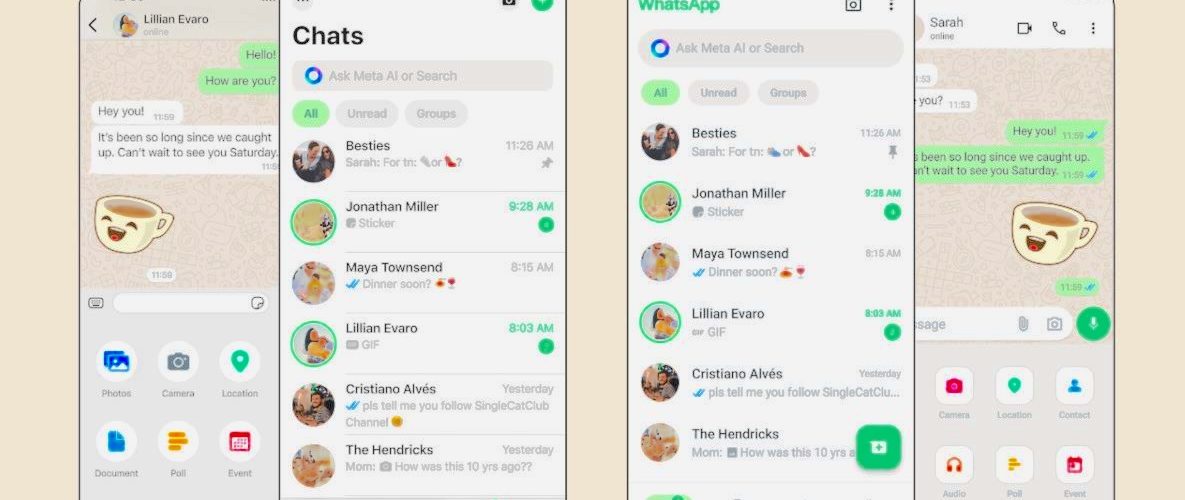

How to Read WhatsApp Messages Without Opening Them
WhatsApp is one of the most convenient messaging platforms in the world — but sometimes, you want to read a message without opening the chat. Maybe you’re busy, maybe you need time to think before replying, or maybe you simply don’t want to trigger the blue tick that tells the sender you’ve seen their message.
The good news? Yes — you can read WhatsApp messages without opening them, and several methods still work perfectly in 2026.
This long‑form guide covers:
- Why people want to read messages secretly
- 6 working methods for Android, iPhone, and desktop
- What no longer works (Airplane Mode, archived chats, etc.)
- How SpyZee helps parents monitor WhatsApp safely
- FAQs and limitations
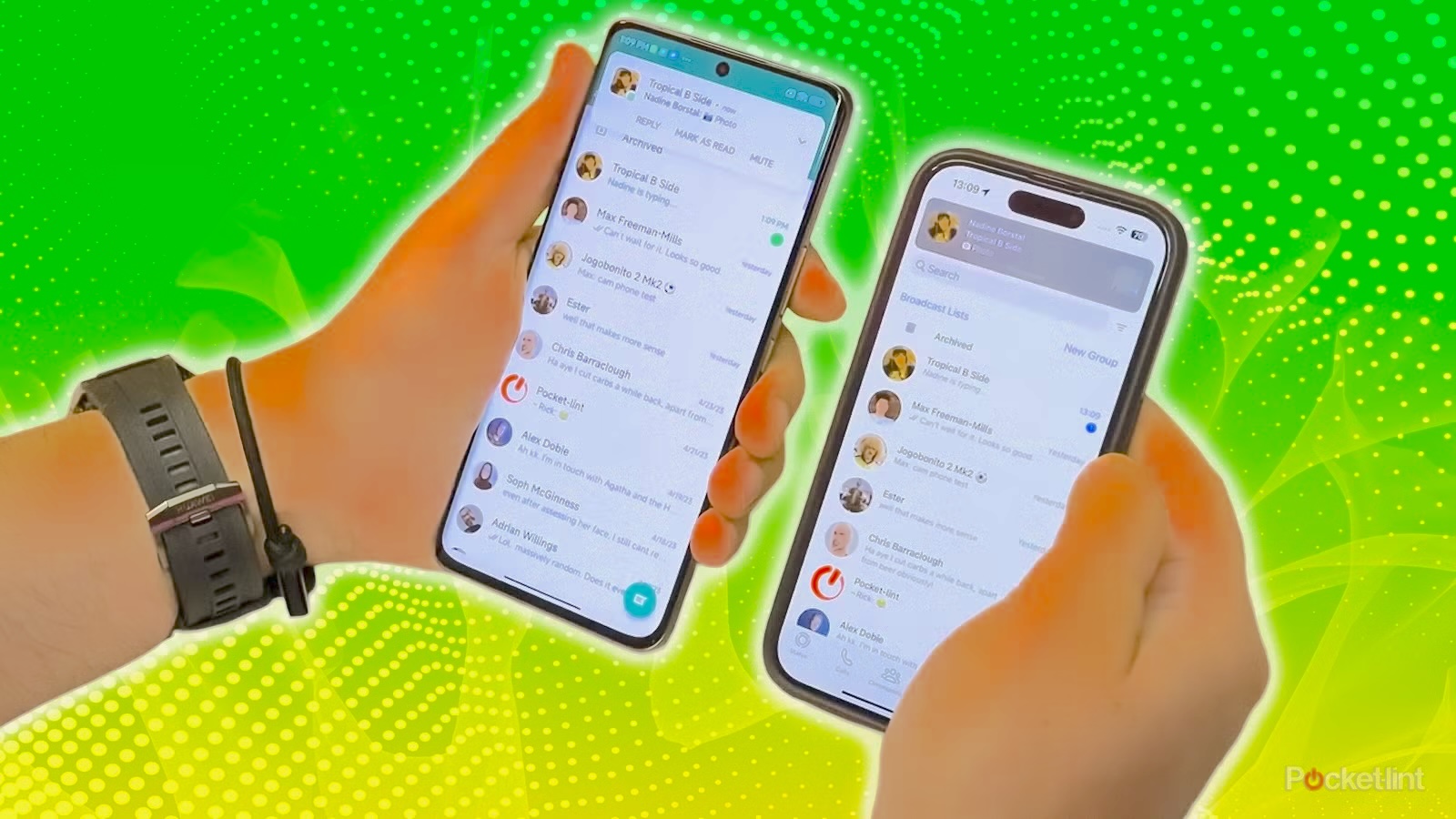
Why Read WhatsApp Messages Without Opening the Chat?
People do this for many reasons:
- To avoid showing read receipts
- To check message importance before replying
- To stay discreet during meetings or work
- To avoid appearing online
- To prevent triggering “Last Seen” updates
- To read messages without engaging in a conversation
Whatever your reason, the methods below help you read messages quietly and safely.
Important Note Before We Begin
Some older tricks — like Airplane Mode, archiving chats, or force‑closing WhatsApp — no longer work reliably due to WhatsApp’s updated encryption and background sync behavior.
The methods in this guide are tested and confirmed working, based on the content in your attached document.
Method 1: Read WhatsApp Messages Through Notification Preview
This is the simplest and most widely used method. When notifications are enabled, WhatsApp messages appear in your phone’s notification panel — allowing you to read them without opening the app.
How to Enable Notification Preview on WhatsApp
Step 1 — Open WhatsApp Settings
Go to WhatsApp → Settings → Notifications.
Step 2 — Enable High Priority Notifications
Turn on:
- Use high priority notifications
- Reaction notifications
These ensure messages appear at the top of your notification panel.
Step 3 — Enable Device Notifications
Go to Phone Settings → Notifications → WhatsApp Enable:
- Allow Notifications
- Lock Screen Notifications
- Banner Alerts
How It Works
Whenever someone sends you a message:
- Swipe down your notification panel
- Read the message without opening WhatsApp
- No blue ticks appear
- The sender is not notified
Limitations
- Long messages may be truncated (especially on iPhone)
- Images, videos, stickers, and voice notes cannot be previewed
- Works best for short text messages
Pro Tip (Android Only)
On many Android phones (e.g., Google Pixel), you can tap the arrow‑down icon in the notification to expand and read the full message.
Method 2: Read WhatsApp Messages Using WhatsApp Web (Without Opening the Chat)
WhatsApp Web mirrors your phone’s messages on a computer. But here’s the trick: you can hover your mouse over a chat to preview the latest message without opening it.
How to Use WhatsApp Web for Message Preview
Step 1 — Open WhatsApp Web
Visit web.whatsapp.com on your browser.
Step 2 — Link Your Device
On your phone:
- Open WhatsApp → Linked Devices → Link a Device
- Scan the QR code on your computer screen
Step 3 — Hover to Preview Messages
When a new message arrives:
- Move your mouse over the chat
- A floating preview appears
- You can read the latest message without opening the conversation
Limitations
- Only the most recent message is shown
- Older unread messages require opening the chat
- Media content cannot be previewed
Still, this is one of the easiest ways to read messages discreetly while working on a computer.
Method 3: Turn Off Read Receipts (Blue Ticks)
If your goal is simply to avoid showing the blue tick, this is the most straightforward method.
How to Disable Read Receipts
- Open WhatsApp → Settings
- Tap Privacy
- Turn off Read Receipts
What Happens Next
- You can open chats normally
- The sender will not see blue ticks
- You also won’t see blue ticks from others
Limitations
- Does not apply to group chats
- You still appear online when opening WhatsApp
This method is perfect for people who want privacy without using extra tricks.
Method 4: Read WhatsApp Messages Using Widgets (Android Only)
Android users have a unique advantage: the ability to add a WhatsApp widget directly to the home screen. This widget displays all unread messages without opening the app — making it one of the most effective ways to read messages secretly.
How to Add a WhatsApp Widget on Android
Step 1 — Long‑Press Your Home Screen
Tap and hold an empty area on your home screen until a menu appears.
Step 2 — Tap “Widgets”
Scroll through the available widgets until you find WhatsApp.
Step 3 — Select the “4×1 WhatsApp” Widget
This widget displays unread messages in a scrollable preview.
Step 4 — Drag the Widget to Your Home Screen
You can resize it by long‑pressing the widget after placing it.
What You Can See
- All unread text messages
- Emojis
- Short previews
What You Cannot See
- Images
- Videos
- Voice notes
- Stickers
Important Warning
If you tap any chat inside the widget, WhatsApp will open — and the sender will see the blue ticks.
This method is ideal for people who want a quick, discreet way to read messages without interacting with the app.
Method 5: Read WhatsApp Messages Using SpyZee (Android)
If you want to read WhatsApp messages without opening the app at all, and you need a more advanced solution — especially for parental monitoring — SpyZee offers a safe, consent‑based way to preview WhatsApp notifications.
SpyZee is designed for family safety, not secret spying. It helps parents monitor their child’s device activity responsibly.
How SpyZee Helps You Read WhatsApp Messages
SpyZee syncs:
- Incoming WhatsApp notifications
- Message previews
- Sender information
- Timestamp details
This allows you to read WhatsApp messages without opening WhatsApp, and without triggering read receipts.
How to Use SpyZee to Read WhatsApp Messages
Step 1 — Install SpyZee Parental Control
Download SpyZee from the Google Play Store on your device.
Step 2 — Install SpyZee Kids on the Target Device
This can be your own Android phone or your child’s device (with consent).
Step 3 — Create and Log In to Your SpyZee Account
Follow the setup instructions on both devices.
Step 4 — Enable Notification Access
This allows SpyZee to sync WhatsApp message previews.
Step 5 — Read WhatsApp Messages from the Dashboard
Go to:
- Notifications → WhatsApp
- Or use Screen Mirror to view the device’s screen in real time
Limitations
- Only text messages can be previewed
- Media files (images, videos, stickers) cannot be viewed
- Requires notification access to be enabled
SpyZee is ideal for parents who want to ensure their child’s safety on WhatsApp without invading their privacy or opening the app directly.
Method 6: Read WhatsApp Messages Using iPhone 3D Touch (Peek & Pop)
If you’re using an iPhone 6s or later, you can use 3D Touch (or Haptic Touch on newer models) to preview messages without opening the chat.
How to Use 3D Touch to Read WhatsApp Messages
Step 1 — Open WhatsApp Chats (But Don’t Enter a Conversation)
Stay on the main chat list.
Step 2 — Press and Hold the Chat You Want to Preview
A preview window will “peel open,” showing the latest messages.
Step 3 — Release to Close the Preview
If you tap outside the preview, the chat will not open — and no read receipt will be sent.
What You Can See
- Text messages
- Emojis
- GIFs
- Images (preview only)
What You Cannot See
- Very long message threads (limited by screen space)
- Older unread messages beyond the preview window
Limitations
- Only works on iPhone
- Not supported on Android
- If you press too hard or swipe up, the chat may open
This method is perfect for iPhone users who want a quick, discreet way to check messages without alerting the sender.
Conclusion
Reading WhatsApp messages without opening the chat is not only possible — it’s easy when you know the right methods. Whether you want to avoid blue ticks, stay discreet during work, or simply preview messages quickly, the six methods in this guide offer flexible solutions for every device.
Best Methods by Device
- Android: Notification preview, widgets, SpyZee
- iPhone: Notification preview, 3D Touch
- Desktop: WhatsApp Web hover preview
Each method has its strengths and limitations, but all allow you to read messages quietly and safely.
If you’re a parent looking to monitor WhatsApp activity responsibly, SpyZee provides a secure, consent‑based way to stay informed without invading privacy.
Now that you know how to read WhatsApp messages without opening them, you can choose the method that fits your needs and enjoy more control over your messaging experience.
FAQs — Reading WhatsApp Messages Without Opening Them
1. Is it possible to read WhatsApp messages without opening the chat?
Yes. You can use notification previews, WhatsApp Web, widgets (Android), 3D Touch (iPhone), or SpyZee to read messages without opening the chat.
2. Can I read full WhatsApp messages from the notification bar?
Yes — especially on Android. Tap the arrow‑down icon to expand long messages. iPhone may truncate long messages.
3. Can I read media files without opening WhatsApp?
No. Images, videos, stickers, and voice notes require opening the chat.
4. Does turning off read receipts hide my reading activity?
Yes — but only for individual chats. Group chats still show read receipts.
5. Can SpyZee show WhatsApp messages without opening the app?
Yes. SpyZee syncs WhatsApp notification previews so you can read text messages without opening WhatsApp.
6. Does WhatsApp Web show message previews without opening the chat?
Yes. Hover your mouse over a chat to see the latest message.
7. Does Airplane Mode still work for reading messages secretly?
No. WhatsApp now updates read receipts once the app reconnects to the internet.




Add comment