

5 Effective Ways to Record a Phone Call on Any Mobile (Safe & Legal Guide)
Recording phone calls can be incredibly helpful — whether you’re a professional capturing important client conversations, a student documenting interviews, or a parent wanting to keep a record of your child’s safety‑related calls. Modern smartphones offer several ways to record calls, but the right method depends on your device, your region, and your purpose.
This comprehensive guide explores five safe, legal, and effective methods to record phone calls on any mobile device. You’ll learn:
- How to use built‑in call recorders
- How to record calls using another phone
- How to use Google Voice
- How to use external recording devices
- How third‑party apps and parental‑control tools like SpyZee can help
Important Legal Reminder Before Recording Calls
Call‑recording laws vary by country and region. Some places require one‑party consent, while others require all parties to agree before recording.
To stay safe and compliant:
- Always inform the other person before recording
- Use call recording only for legal and ethical purposes
- Avoid recording confidential or sensitive conversations without permission
This guide focuses on legal, consent‑based recording methods.
Method 1: Use Your Phone’s Built‑In Call Recording Feature
Many Android phones come with a native call‑recording feature. This is the easiest and most reliable way to record calls because it doesn’t require third‑party apps or external devices.
Phones That Support Built‑In Call Recording
Most Android manufacturers include this feature:
- Samsung
- Xiaomi
- Oppo
- Vivo
- Motorola
- LG
- Infinix
- Realme
- Huawei
- ASUS
Phones That Do NOT Support Native Recording
- Google Pixel
- OnePlus
- Some Android models depending on region
- iPhones (except iPhone 15 Pro series on iOS 18)
Apple’s Built‑In Call Recording
Apple introduced native call recording in iOS 18, but only for:
- iPhone 15 Pro
- iPhone 15 Pro Max
Older iPhones do not support built‑in call recording.
How to Record Calls Using Built‑In Recorder (Android)
Step 1 — Start or Answer a Call
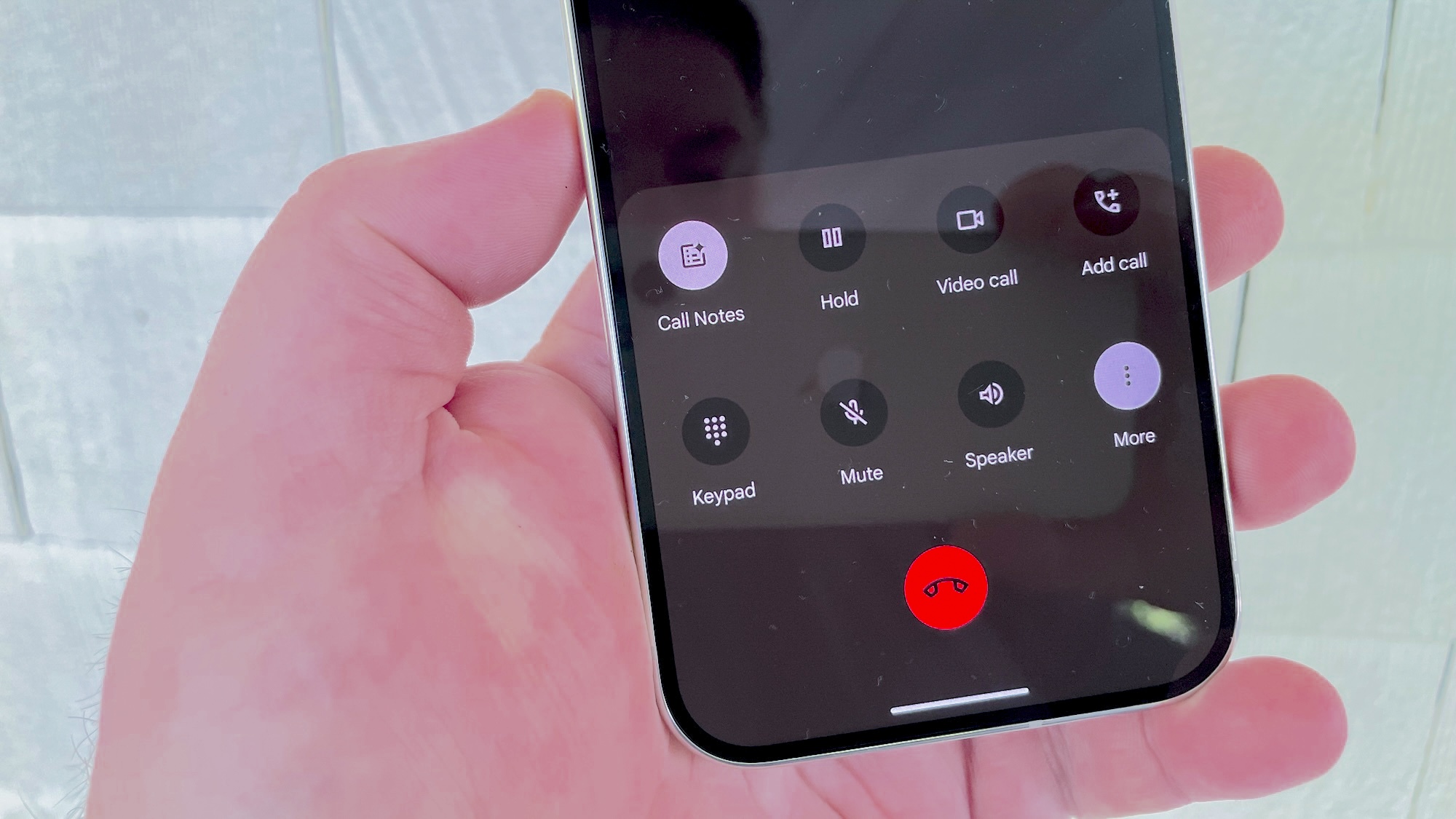
During the call, look for a Record button on the call screen.
Step 2 — Tap “Record”
The phone will begin recording immediately.
Step 3 — Stop Recording Anytime
Tap Stop Recording when you’re done.
Step 4 — Access Your Recordings
Go to:
Phone App → Recents → Select Contact → Call Recordings
Some phones save recordings in:
File Manager → Call Recordings
Pro Tip: Auto‑Record Calls
Many Android phones allow automatic recording:
Settings → Call Recording → Always Record
You can choose:
- All calls
- Unknown numbers
- Selected contacts
This is especially useful for business calls or interviews.
Method 2: Use a Second Phone’s Audio Recorder
If your phone doesn’t support call recording, or if you want a simple workaround, you can use another device to record the conversation.
This method works on any phone, including iPhones.
What You Need
- A second phone
- A built‑in recorder app (Voice Memos, Recorder, Sound Recorder, etc.)
How to Record Using Another Phone
Step 1 — Open the Recorder App
On the second device, open:
- Voice Memos (iPhone)
- Recorder (Android)
- Any built‑in audio recorder
Tap Record.
Step 2 — Place the Second Phone Near Your Main Phone
Position it close to the speaker for clear audio.
Step 3 — Put Your Main Phone on Speaker Mode
This ensures both sides of the conversation are captured.
Step 4 — Record the Call
Let the second device capture the audio.
Step 5 — Save the Recording
Tap Done on the second device.
Step 6 — Share or Export
You can export the audio via:
- Messaging apps
- Cloud storage
- SpyZee (if you use it for parental monitoring)
Method 3: Use Google Voice (Free, But Incoming Calls Only)
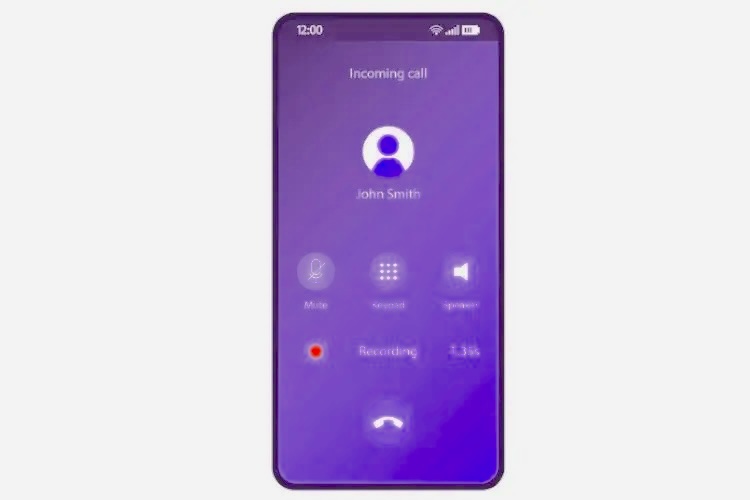
Google Voice is a free service available in the United States and select regions. It allows you to record incoming calls only.
Key Benefits
- Free
- High‑quality audio
- Cloud‑stored recordings
- Works on both Android and iPhone
Limitations
- Only records incoming calls
- Not available in all countries
- Google announces the recording to all parties
How to Record Calls Using Google Voice
Step 1 — Open Google Voice
Download from:
- Google Play Store
- Apple App Store
Step 2 — Open Settings
Tap the menu icon → Settings.
Step 3 — Enable Call Recording
Toggle Incoming Call Options ON.
Step 4 — Answer an Incoming Call
When the call begins, press 4 on the dialpad.
Google will announce: “This call is now being recorded.”
Step 5 — Press 4 Again to Stop
The recording will end immediately.
Step 6 — Access Your Recordings
Go to:
Google Voice → Calls → Recording Icon
You can:
- Listen
- Download
- Share
Method 4: Use External Voice Recorder Devices
If your phone doesn’t support call recording or you want professional‑grade audio quality, external recording devices are a reliable option. These tools capture both sides of the conversation clearly and work with any mobile phone, regardless of brand or operating system.
External recorders are especially useful for:
- Journalists
- Researchers
- Podcasters
- Professionals conducting interviews
- Users who need high‑quality audio
Below are the most effective types of external recorders.
1. Zoom H5 Handy Recorder
The Zoom H5 is a popular portable audio recorder known for its clarity and versatility. It can connect directly to your phone using the appropriate cables or adapters.
Why People Use It
- Captures both sides of the call clearly
- Professional‑grade audio
- Ideal for interviews and documentation
- Works with smartphones, landlines, and VoIP calls
Price Range
Approximately $270–$300
This option is best for users who need studio‑quality recordings.
2. Bluetooth Headsets With Built‑In Recording
Some Bluetooth headsets are designed specifically for call recording. One example is the RecorderGear PR200, which pairs with your phone and records calls at the press of a button.
Benefits
- Hands‑free recording
- Portable and convenient
- Good audio quality
- Works with most smartphones
Price Range
Around $109
This is a great option for users who want a simple, wireless solution.
3. External Microphones or Dedicated Voice Recorders
If you prefer a budget‑friendly option, you can use:
- Lavalier microphones
- Shotgun microphones
- Portable voice recorders (Sony, Olympus, etc.)
These devices record audio when placed near your phone’s speaker.
Pros
- Affordable
- Easy to use
- Good audio quality
Cons
- Requires speakerphone mode
- Picks up background noise
Price Range
Approximately $20–$50
This method is ideal for quick, casual recordings.
Method 5: Use Third‑Party Call Recording Apps
Third‑party apps can record calls automatically or manually, depending on your device and region. However, due to privacy restrictions, some apps may not work on all phones.
One of the most widely used options is Cube Call Recorder (Cube ACR).
Cube Call Recorder (Cube ACR)
Cube ACR is known for its ability to record:
- Phone calls
- VoIP calls (WhatsApp, Skype, Messenger, etc.)
- Both sides of the conversation
Key Features
- High‑quality audio
- Automatic or manual recording
- Contact exclusion lists
- Cloud backup options
- VoIP call support
Pricing
- Free version with ads
- Premium: $11.99 for 6 months
Limitations
- May not work on all Android versions
- iPhone restrictions limit functionality
- Some users report occasional reliability issues
Still, it remains one of the most capable call‑recording apps available.
Bonus: SpyZee Parental Control — Listen & Record Surroundings Safely
For parents who want to ensure their child’s safety, SpyZee Parental Control offers advanced audio‑monitoring features. Unlike standard call recorders, SpyZee focuses on family safety, not general call recording.
What SpyZee Can Do
- Record surrounding audio
- Listen to ambient sounds
- Access the child’s camera feed
- Monitor device activity responsibly
These features help parents:
- Ensure their child is in a safe environment
- Detect potential risks
- Stay informed about their child’s well‑being
SpyZee is not a traditional call‑recording app — it is a parental‑control tool designed for safety, transparency, and responsible use.
Conclusion
Recording phone calls can be incredibly useful, whether you’re capturing important conversations, documenting interviews, or ensuring your child’s safety. With today’s technology, there are multiple safe and legal ways to record calls on any mobile device.
In this guide, we explored:
- Built‑in call recording features
- Recording calls using another phone
- Google Voice for incoming calls
- External recording devices
- Third‑party call recording apps
- SpyZee for parental safety monitoring
Each method has its strengths, and the best choice depends on your device, your needs, and your local laws. Always remember to record calls ethically and with consent.
FAQs About Recording Phone Calls
1. How can I record a phone call on my mobile?
You can use built‑in call recording, Google Voice, external recorders, or third‑party apps like Cube ACR.
2. Is it legal to record phone calls?
Laws vary by region. Some countries require one‑party consent, while others require all parties to agree. Always inform the other person.
3. Can I record calls on iPhone?
Yes — using external devices, Google Voice (incoming calls), or iOS 18’s built‑in recorder on iPhone 15 Pro models.
4. What is the easiest way to record a call?
Using your phone’s built‑in call recorder (if available) is the simplest method.
5. Can SpyZee record phone calls?
SpyZee focuses on surrounding audio and safety monitoring, not traditional call recording. It is designed for parental control and child safety.
6. Can I record VoIP calls like WhatsApp or Messenger?
Yes — apps like Cube ACR support VoIP call recording on many Android devices.
7. What is the best external device for call recording?
The Zoom H5 offers professional‑grade audio, while Bluetooth recorders like RecorderGear PR200 offer convenience.
8. Can I record calls without the other person knowing?
No. You must always follow local laws and obtain consent before recording.




Add comment