

How to Record a Phone Call on Samsung
Samsung Galaxy phones are among the few Android devices that still offer native call recording, even after Google restricted third‑party call‑recording apps in 2023. If you’re using a Samsung device running Android 9 or later, you can record calls directly from the Phone app — no extra apps required.
This guide covers:
- Whether call recording is legal
- How to record calls automatically or manually
- How to record calls using apps
- How to record calls using Google Voice
- How to record calls from unknown numbers or selected contacts
- How to find, manage, and share recorded calls
- How SpyZee helps families monitor calls safely

1. Is It Legal to Record Phone Calls on Samsung?
There is no universal answer — call recording laws vary by country and region.
Important Legal Notes
- Google blocked third‑party call recording apps in 2023 by restricting the Accessibility API.
- Samsung, Xiaomi, Realme, and Pixel devices still offer built‑in call recording, which does not violate Google’s policies.
- Samsung’s call recording feature is available only on Android 9+ and in regions where call recording is legally permitted.
- Some countries require one‑party consent, while others require two‑party consent.
In Short
Recording calls on Samsung is legal only if you comply with your local laws. Always inform the other person if required.
2. How to Record a Phone Call on Samsung (Built‑In Phone App)
Samsung’s built‑in call recorder is the easiest and most reliable method. You can record calls automatically or manually.
2.1 Record Calls Automatically
This option records calls without needing to tap anything during the call.
Steps
- Open the Phone app
- Tap the three‑dot menu
- Select Settings
- Tap Record Calls
- Tap Auto Record Calls
- Enable the toggle
- Choose what to record:
- All calls
- Calls from unsaved numbers
- Calls from selected contacts
You may need to grant microphone permissions the first time.
2.2 Record Calls Manually
If you prefer to choose which calls to record:
Steps
- Open the Phone app
- Make or receive a call
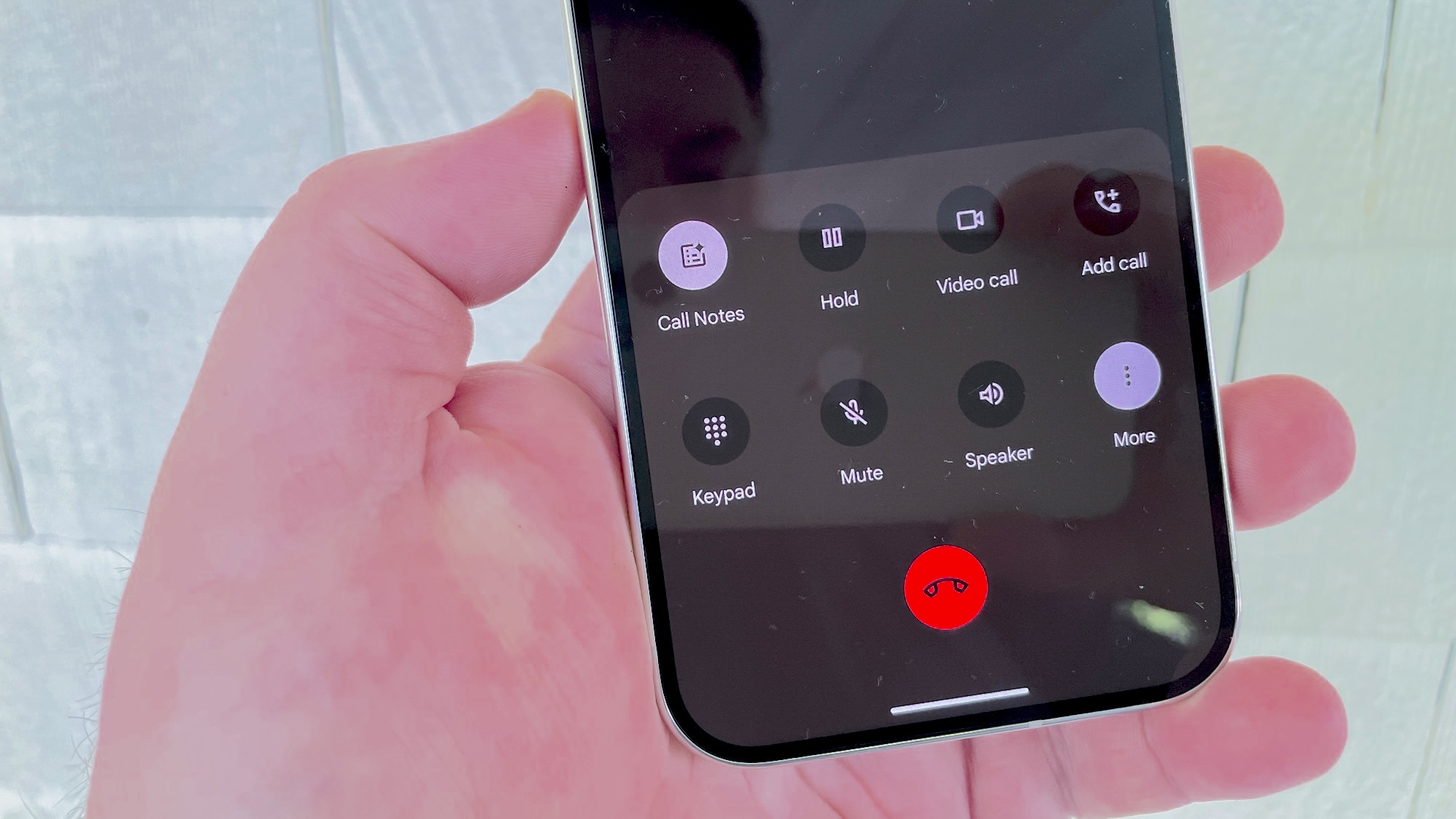
- Tap Record on the call screen
- If you don’t see it, tap the three‑dot menu → Record Call
- Tap Stop to end recording
Samsung will save the recording automatically.
3. How to Record Phone Calls Using Call Recorder Apps
Since Google blocked most third‑party call recorders, only a few apps still work reliably — mainly those designed for parental control or device monitoring.
Below are the safest options based on your document’s informational value.
3.1 SpyZee Parental Control (Family‑Safe Call Monitoring)
SpyZee is a consent‑based parental‑control tool that helps families monitor calls safely. It does not bypass Samsung’s built‑in restrictions — instead, it provides:
- Call logs
- Screen mirroring
- Notification sync
- Real‑time monitoring
- Location tracking
SpyZee is available on the Google Play Store and is designed for responsible digital supervision.
How to Set Up SpyZee
- Install SpyZee Parental Control on your device
- Create an account and log in
- Install SpyZee Kids on your child’s Samsung phone
- Link both devices using the pairing code
- Enable microphone and screen permissions
Once connected, you can view call activity and monitor the device safely.
3.2 Google Voice (Free Incoming Call Recording)
Google Voice allows recording incoming calls only — not outgoing calls.
How to Enable Recording
- Visit the Google Voice website
- Click the Settings gear
- Select Calls
- Enable Incoming Call Options
How to Record
- Press 4 during an incoming call
- Google Voice will announce that the call is being recorded
- Press 4 again to stop
Recordings are stored in your Google Voice inbox.
3.3 Automatic Call Recorder (Limited Functionality)
This app used to be one of the most popular call recorders. However, due to Google’s restrictions, it may not work on all Samsung devices.
How to Use
- Install from the Google Play Store
- Accept permissions
- Open Settings → Recording Mode
- Enable Automatic Recording
Success varies depending on your region and device model.
4. How to Use Samsung Call Recording Settings for Different Scenarios
Samsung allows you to customize call recording based on your needs.
4.1 Record Calls from Unknown Numbers
- Open Phone
- Tap More Options → Settings
- Tap Record Calls
- Tap Always Record
- Select Numbers not in contacts
4.2 Record Calls from Selected Contacts
- Open Phone
- Tap More Options → Settings
- Tap Record Calls
- Tap Selected Numbers
- Enable Always Record Selected Numbers
- Tap Add to choose contacts
4.3 Record an Individual Call
- Make or receive a call
- Tap Record
- Tap Stop to end recording
5. How to Find and Share Call Recordings on Samsung
Once you’ve recorded calls using Samsung’s built‑in recorder, you can easily access, manage, and share them.
Steps to Find Your Call Recordings
- Open the Phone app
- Tap the three‑dot menu
- Select Settings
- Tap Record Calls
- Tap Recorded Calls
Here, you’ll see a list of all recorded calls, organized by:
- Contact name
- Phone number
- Date and time
How to Share a Recorded Call
- Long‑press the recording you want to share
- Tap Share
- Choose your preferred method:
- Messaging apps
- Cloud storage
- Bluetooth
Samsung stores recordings in the internal storage under:
My Files → Internal Storage → Call → Recordings
This makes it easy to back up or transfer recordings.
6. Advanced Call Recording Tips for Samsung Users
Samsung’s call recording system is more flexible than most Android devices. Here are advanced ways to customize your recording experience.
6.1 Record Calls for Business Purposes
Businesses often record calls for:
- Quality assurance
- Training
- Customer support
- Dispute resolution
Samsung’s automatic recording feature is ideal for this. Just ensure you comply with local laws and inform callers when required.
6.2 Record Calls for Personal Use
You may want to record calls for:
- Saving important information
- Keeping voice memos
- Documenting threats or harassment
- Remembering instructions
Samsung’s manual recording option is perfect for occasional use.
6.3 Record Calls from Unknown Numbers
This is useful when:
- You receive spam calls
- You want evidence for complaints
- You’re dealing with unknown callers
Steps
- Open Phone → Settings
- Tap Record Calls
- Tap Always Record
- Select Numbers not in contacts
6.4 Record Calls from Selected Contacts
Ideal for:
- Business partners
- Family members
- Important clients
Steps
- Open Phone → Settings
- Tap Record Calls
- Tap Selected Numbers
- Enable Always Record Selected Numbers
- Tap Add to choose contacts
6.5 Record a Single Call on Demand
If you only want to record specific conversations:
- Make or receive a call
- Tap Record
- Tap Stop when done
This method gives you full control.
7. SpyZee Parental Control: Safe Call Monitoring for Families
While Samsung’s built‑in call recorder is powerful, some families need additional tools to ensure their child’s safety — especially when dealing with unknown callers, bullying, or suspicious behavior.
This is where SpyZee Parental Control becomes helpful.
SpyZee is a consent‑based, family‑friendly monitoring tool designed to help parents stay informed about their child’s digital activity.
What SpyZee Can Do
- View call logs
- Mirror the child’s screen in real time
- Sync notifications
- Track phone location
- Provide safety alerts
- Support healthy digital habits
SpyZee does not bypass Samsung’s built‑in restrictions — instead, it provides a safe environment for monitoring and guidance.
SpyZee is available on the Google Play Store.
Conclusion
Samsung remains one of the few smartphone brands that still offer native call recording, making it incredibly convenient for users who need to save conversations for personal, professional, or safety reasons.
You can record calls:
- Automatically
- Manually
- From unknown numbers
- From selected contacts
- Using Google Voice
- Using parental‑control tools like SpyZee
Whether you’re documenting important information, protecting yourself from harassment, or ensuring your child’s safety, Samsung provides a flexible and reliable call‑recording experience.
Just remember:
- Always follow local laws
- Inform callers when required
- Use third‑party apps responsibly
- Avoid apps that violate Google’s policies
With the right tools and settings, recording calls on Samsung is simple, safe, and effective.
FAQs About Recording Phone Calls on Samsung
1. How do I record a call on Samsung without an app?
Use Samsung’s built‑in recorder: Phone → Settings → Record Calls → Choose manual or automatic recording.
2. How do I know if someone is recording my call?
You may hear a beep, receive a verbal notice, or simply ask the person directly.
3. Can all Samsung Galaxy phones record calls?
Yes — most Samsung Galaxy phones running Android 9 or later include built‑in call recording.
4. How do I delete a recorded call on Samsung?
Go to: My Files → Internal Storage → Calls → Delete the desired recording.
5. How do I record audio on my Samsung phone?
Use the built‑in Voice Recorder app available on all Samsung devices.
6. How do I enable call recording on Samsung Galaxy S9?
During a call: Tap three dots → Record → Accept Terms.
7. How do I enable automatic call recording on Galaxy S22?
Phone → Three dots → Settings → Record Calls → Auto Record Calls → Toggle On.




Add comment