

5 Effective Ways to Locate a Lost Cell Phone That Is Turned Off
Losing a phone is stressful enough — but losing a phone that’s powered off can feel like a nightmare. Whether the battery died, the device was switched off intentionally, or it simply shut down unexpectedly, the question remains:
“Can I still track my phone if it’s turned off?”
The short answer: Yes — but with limitations.
While a powered‑off phone cannot send real‑time GPS updates, several tools can still help you find its last known location, secure your data, or increase your chances of recovery.
This guide explores five effective, safe, and legal methods to locate a lost phone that is turned off, including:
- Google’s Find My Device
- Samsung’s Find My Mobile
- Apple’s Find My
- Google Maps Timeline
- Parental‑control tools like SpyZee
Can You Track a Phone That Is Turned Off?
Yes — but only to a certain extent.
When a phone is powered off:
- GPS stops updating
- Mobile network radios shut down
- Wi‑Fi and Bluetooth disconnect
- Real‑time tracking becomes impossible
However, you can still:
- View the last known location
- See the last synced GPS point
- Use offline‑finding networks (Samsung, Apple)
- Use Google Maps Timeline (if enabled)
- Use parental‑control apps to detect low‑battery alerts before shutdown
Special Case: Google Pixel 8 & 8 Pro
These devices include specialized hardware that allows Find My Device to locate them even when powered off or the battery is dead — a feature not yet available on most other phones.
Method 1: Use Find My Device (Android)
Google’s Find My Device is the most reliable way to locate a lost Android phone — even if it’s turned off. While it cannot show real‑time movement, it will display the last known location before the device shut down.
Requirements
Before the phone was lost, it must have had:
- Find My Device enabled
- Location Services turned on
- A Google account signed in
- Internet access at least once recently
How to Locate a Turned‑Off Android Phone
Step 1 — Visit the Find My Device Website
Go to: android.com/find
Step 2 — Sign In
Use the Google account linked to the lost phone.
Step 3 — Select Your Device
Your registered devices will appear at the top.
Step 4 — View the Last Known Location
The map will display:
- The last GPS point
- The time it was last online
- Battery level (if available)
Additional Options
- Secure Device — Lock the phone remotely
- Play Sound — Works only if the phone is on
- Erase Device — Wipes all data (irreversible)
Tip: If you sign in from a new device, Google may require two‑factor authentication. Using a device already logged into your Google account is faster.
Method 2: Use Find My Mobile (Samsung)
Samsung users have an additional advantage: Find My Mobile, a powerful tracking service that can locate devices even when offline — if Offline Finding was enabled beforehand.
Requirements
- Find My Mobile enabled
- Samsung account signed in
- Location Services turned on
How to Locate a Lost Samsung Phone
Step 1 — Visit the Find My Mobile Website
Go to: smartthingsfind.samsung.com
Step 2 — Sign In
Use your Samsung account credentials.
Step 3 — Select Your Device
A list of registered Samsung devices will appear.
Step 4 — View the Last Known Location
The map will show:
- Last detected location
- Time of last connection
- Whether the device is offline
Offline Finding
If enabled, Samsung devices can be located even when:
- Not connected to Wi‑Fi
- Not connected to mobile data
- Turned off (in some cases)
This feature uses nearby Samsung devices to anonymously relay location data.
Tip: Act quickly — the longer the phone stays off, the less accurate the last known location becomes.
Method 3: Use Apple Find My (iPhone)
Apple’s Find My network is one of the most advanced tracking systems available. It can locate iPhones even when:
- The device is turned off
- The battery is dead
- The device is offline
This works through Apple’s encrypted Find My network, which uses nearby Apple devices to relay location data.
Requirements
Before losing the phone:
- Find My iPhone enabled
- Location Services turned on
- Apple ID signed in
How to Locate a Turned‑Off iPhone
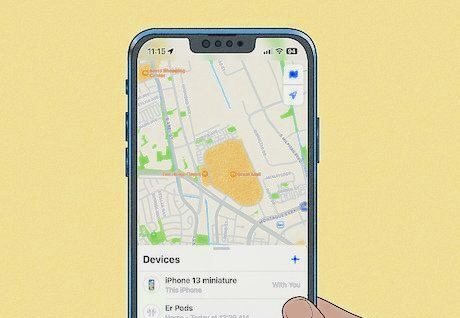
Option A — Use Another Apple Device
- Open Find My on your iPad or Mac.
- Tap Devices.
- Select the lost iPhone.
- View its last known location.
- Tap Directions to navigate to it.
Option B — Use iCloud Website
- Visit iCloud.com/find
- Sign in with your Apple ID
- Click All Devices
- Select the lost iPhone
- View the last known location
Option C — Use Someone Else’s iPhone
- Open Find My
- Tap Me → Help a Friend
- Sign in with your Apple ID
- Select your lost device
Tip: If two‑factor authentication is enabled, you can receive the verification code via SMS or phone call.
Method 4: Use Google Maps Timeline (Last Known Location)
Google Maps Timeline is one of the most underrated tools for locating a lost phone — especially when the device is turned off. Unlike real‑time tracking, Timeline stores historical location data collected from the device whenever Location History is enabled.
This means that even if the phone is currently powered off, you can still view:
- The last place it was before shutting down
- The route it took earlier in the day
- Time‑stamped location points
Requirements
Before losing the phone:
- Google Location History must be enabled
- The device must have been signed into a Google account
- Location Reporting must have been active
If these settings were turned off, Timeline will not show any data.
How to Use Google Maps Timeline to Find a Turned‑Off Phone
Step 1 — Visit Google Maps
Go to: www.google.com/maps
Sign in with the Google account linked to the lost device.
Step 2 — Open “Your Timeline”
On the left sidebar, click Your Timeline.
Step 3 — Select Today’s Date
At the top of the screen, choose Today or the date the phone was lost.
Step 4 — Review the Timeline
You’ll see:
- Movement history
- Time stamps
- Last known location
- Stops and routes
Step 5 — Locate the Last Known Position
Scroll through the timeline to find the most recent GPS point before the phone turned off.
Tip: If the phone was stolen, Timeline can help identify the last place it was active — which may be useful for reporting to authorities.
Method 5: Use SpyZee / Family Locator for Loved Ones
If you’re trying to locate a child’s phone, a family member’s device, or a paired phone, parental‑control apps can be extremely helpful. These apps are designed for family safety, not surveillance, and must be used with consent.
One such tool is SpyZee Parental Control, which offers real‑time tracking and low‑battery alerts — features that can help you act before the phone shuts down.
SpyZee Parental Control (Android & iOS)
SpyZee is a family‑safety app that helps parents monitor their children’s digital activity and physical safety. While it cannot track a phone that is already turned off, it can:
- Track real‑time location before shutdown
- Send low‑battery alerts
- Show location history
- Provide geofencing alerts
- Allow parents to remotely view surroundings (with consent)
These features increase the chances of recovering a device before it powers down.
Key Features for Locating a Lost Phone
1. Real‑Time GPS Tracking
See the device’s live location while it’s still powered on.
2. Location History
Review where the device has been throughout the day.
3. Low‑Battery Alerts
Receive notifications when the device battery drops below a certain percentage (e.g., 20%).
This gives you time to act before the phone shuts off.
4. Geofencing
Set safe zones and receive alerts when the device enters or leaves them.
5. Remote Monitoring Tools
SpyZee can also:
- Listen to surrounding audio
- Access the camera feed
- Provide safety insights
These features are designed for child safety, not unauthorized tracking.
Can You Track a Switched‑Off Phone Using IMEI?
Many people believe that the IMEI number can be used to track a phone directly — but this is a misconception.
What IMEI Can Do
- Identify the device on mobile networks
- Help carriers block the phone
- Assist law enforcement in investigations
What IMEI Cannot Do
- Provide real‑time location to regular users
- Track a phone without carrier involvement
- Locate a phone that is powered off
Who Can Track IMEI?
Only:
- Mobile network providers
- Law enforcement agencies
And even then, they may require:
- Legal authorization
- A police report
- A court order
If your phone is stolen, you can contact your carrier to request assistance.
Major Carrier Support Numbers (U.S.)
| Wireless Carrier | Customer Service |
|---|---|
| AT&T | 1‑800‑331‑0500 |
| Verizon | 1‑800‑922‑0204 |
| T‑Mobile | 1‑877‑746‑0909 |
| Sprint | 1‑888‑211‑4727 |
| TracFone Wireless | 1‑800‑867‑7183 |
| Straight Talk | 1‑877‑430‑2355 |
Note: These numbers are general customer service lines. Always check the carrier’s official website for the most up‑to‑date contact information.
Conclusion
So, can you track a phone that is turned off?
Not in real time — but you can still find its last known location.
In this guide, we explored five effective methods:
- Find My Device (Android)
- Find My Mobile (Samsung)
- Apple Find My (iPhone)
- Google Maps Timeline
- SpyZee / Family Locator tools
While no method can track a powered‑off phone live, these tools can help you:
- Recover the device
- Secure your data
- Understand where it was last active
- Act quickly before the battery dies
Parental‑control apps like SpyZee also help parents stay informed about their child’s safety, offering features like low‑battery alerts, geofencing, and location history.
With the right tools and quick action, you significantly increase your chances of finding a lost phone — even if it’s turned off.
FAQs About Locating a Lost Phone
1. Can I track a phone that is turned off?
You can’t track it in real time, but you can view its last known location using Find My Device, Find My Mobile, Apple Find My, or Google Maps Timeline.
2. Can SpyZee track a phone that is turned off?
No. But SpyZee can track the phone before it turns off and send low‑battery alerts to help you act quickly.
3. Can I track a phone using only the IMEI number?
Not directly. Only carriers and law enforcement can use IMEI for tracking, and usually only with legal authorization.
4. Can Google Maps show the last location of a turned‑off phone?
Yes — if Location History was enabled before the phone was lost.
5. Can I locate an iPhone that is turned off?
Yes. Apple’s Find My network can show the last known location, even when the device is offline or powered off.
6. What should I do first when my phone is lost?
Use Find My services immediately, secure your device, and consider contacting your carrier.
7. Can Samsung phones be located offline?
Yes — if Offline Finding was enabled before the phone was lost.
8. What’s the best way to prevent losing a phone?
Enable Find My services, turn on Location History, and use parental‑control tools like SpyZee for alerts and tracking.




Add comment