
Screen mirroring explained for parents
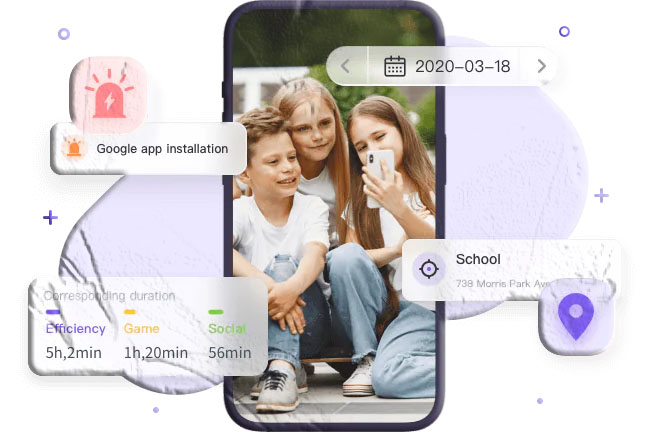
Screen mirroring shows, in real time, exactly what appears on a child’s phone screen so a caregiver can understand apps, messages, videos and other on‑device activity without asking the child to hand over the device. This guide explains how screen mirroring works, what it can and cannot do, how parents typically set it up using SpyZee as an example, how to combine it with built‑in device controls, and how to use the information responsibly.
What screen mirroring actually shows
Screen mirroring transmits the visual output of one device (the source) to another device (the viewer). When applied to parental monitoring, the mirrored feed replicates the child’s phone display on the parent’s device so the parent can:
- See the apps the child opens and the content displayed on screen.
- Watch videos, social feeds and messages as they appear (visual only).
- Capture screenshots or short recordings where the monitoring solution allows.
- Observe navigation patterns, app usage and on‑screen notifications.
Screen mirroring does not automatically reveal off‑screen context such as the child’s facial expressions, the tone of voice in a conversation, or the identity of people behind a phone number unless that information appears on the screen itself.
How screen mirroring works technically
At a high level, screen mirroring relies on three components: permissioned access on the child’s device, a secure connection between devices, and a viewer interface on the parent’s device.
- Permissions and installation. A monitoring app or companion service must be installed on the child’s phone and granted the permissions required to capture screen output. On modern mobile platforms, capturing the screen requires explicit consent and runtime permissions.
- Secure pairing. The parent’s device and the child’s device are linked through an account, pairing code, or QR code so the parent can request a live feed.
- Streaming or snapshot. The child’s device either streams the screen in real time to the parent’s dashboard or periodically sends screenshots. Streaming uses more data and battery; snapshots are lighter but less immediate.
- Viewer interface. The parent uses an app or web dashboard to view the mirrored screen, capture images, or record short clips depending on the solution’s features.
Different implementations vary in latency, image quality, and whether the child sees an on‑screen indicator when mirroring is active. Platform rules (Android and iOS) and app store policies influence what is possible.
What screen mirroring can and cannot do
Can do
- Provide a live visual of the child’s phone screen.
- Reveal which apps are installed and which are actively used.
- Capture screenshots or short recordings if the monitoring solution supports it.
- Help parents spot risky content, suspicious messages, or unfamiliar apps.
Cannot do
- Read encrypted messages that do not display on screen (for example, content hidden behind biometric locks).
- Guarantee identity verification of people seen in messages or profiles.
- Replace conversation and context; a single screenshot rarely tells the whole story.
- Always run invisibly; some apps or platforms show indicators when screen capture is active.
Why parents use screen mirroring
Parents use screen mirroring for practical reasons that focus on safety and support:
- Immediate context: When a child reports a problem or a parent senses something is wrong, a live view can confirm whether the child is safe and what kind of help is needed.
- App discovery: Mirroring reveals new or hidden apps that may not appear in a simple app list.
- Homework supervision: Parents can confirm that a child is using educational apps or websites during study time.
- Bullying and harassment: Real‑time views can show messages or social feeds that indicate cyberbullying.
- Digital coaching: Seeing how a child navigates apps helps parents teach better privacy and safety habits.
Use screen mirroring as a tool for support and verification rather than punishment.

Setting up screen mirroring: a practical example with SpyZee
The steps below describe a typical setup flow using SpyZee as the example monitoring solution. Follow the publisher’s official instructions for exact screens and permissions.
- Create an account. Download the parent app from Google Play or the Apple App Store and register with a secure email and password.
- Install the companion on the child’s device. Install the child app and grant the permissions requested for screen capture and related features.
- Pair devices. Use the app’s binding process (pairing code or QR code) to link the child’s device to the parent account.
- Enable screen mirroring. From the parent dashboard, enable the screen mirroring feature and choose whether to stream live or capture periodic screenshots.
- Test the connection. Start a short mirroring session to confirm the feed appears on the parent device and that screenshots save correctly.
- Configure notifications and retention. Set alerts for when mirroring starts and choose how long captured images are retained.
- Secure the account. Use a strong password and enable two‑factor authentication if available.
SpyZee is one example of a monitoring solution; many parents combine native device controls with a monitoring app for consolidated visibility.
Device differences and platform constraints
- Android: Android provides more flexibility for background services and screen capture, but recent Android versions require explicit user consent for screen recording and may show a persistent notification while capture is active. Some third‑party mirroring tools require the child’s device to allow screen capture via a system dialog.
- iOS: iOS restricts background screen capture more tightly. Screen recording and mirroring typically require user interaction or specific system APIs; some monitoring features are limited by Apple’s privacy model. Parents should check the app’s App Store listing for compatibility details.
For general information about screen mirroring apps and options, reputable technology guides and app store listings provide comparisons and feature details.
Native alternatives to third‑party mirroring
Before installing a monitoring app, consider built‑in options that may meet your needs:
- Family Sharing and Screen Time (iOS): Apple’s Screen Time and Family Sharing let parents set limits, view usage reports and manage app access without third‑party software.
- Google Family Link and Digital Wellbeing (Android): Google’s Family Link allows parents to set app limits, approve installs and lock devices remotely; Digital Wellbeing shows usage patterns.
- Casting to a local display: For supervised sessions, casting the child’s screen to a nearby TV or computer using Chromecast, AirPlay or Miracast can let a parent and child review activity together.
Native tools are often more resilient to bypass attempts and align with platform privacy rules.
Practical scenarios and recommended responses
Scenario: Unexpected app or social account
If mirroring reveals a new social app or account, ask open questions: who introduced the app, what do they like about it, and whether they understand privacy settings. Use the moment to review profile privacy and friend lists.
Scenario: Potential cyberbullying
If you see threatening messages or repeated harassment, preserve screenshots, talk with your child calmly, and follow school or local reporting procedures. If there is immediate danger, contact local authorities.
Scenario: Homework distraction
If the child is supposed to be studying but is watching videos, pause the session and discuss a study plan. Consider scheduling mirroring during homework time as a temporary supervision measure.
Scenario: Safety check
If a child reports feeling unsafe, a short live mirror can confirm surroundings and help you decide whether to call, pick them up, or ask for more details.
In every scenario, prioritize short, targeted sessions and follow up with supportive conversation rather than punitive action.
Legal and ethical considerations
Monitoring a child’s screen raises legal and ethical questions that vary by jurisdiction and family context:
- Consent and local law. Parents generally have the right to monitor minor children’s devices, but laws differ by country and region. Monitoring adults without consent is often illegal. Check local regulations.
- Age and transparency. Younger children are typically monitored more closely; older teens may expect more privacy. Consider discussing monitoring policies with older children to preserve trust.
- Purpose and proportionality. Use mirroring to protect and support, not to control or punish. Limit sessions to clear safety or supervisory needs.
- Data security. Treat captured images and recordings as sensitive data: secure accounts, limit access, and delete files when no longer needed.
- Platform rules. Follow app store and platform policies; some platforms require visible indicators when screen capture is active.
Responsible use balances safety with respect for privacy and legal obligations.
Privacy best practices for parents
- Limit mirroring sessions to what is necessary and proportionate.
- Keep a log of sessions and why they occurred, especially if recordings are retained.
- Use strong account security and two‑factor authentication.
- Restrict access to the monitoring account to trusted caregivers only.
- Delete captured images and recordings once they are no longer needed for safety or evidence.
- Be transparent with caregivers and, when appropriate, with older children about monitoring policies.
Troubleshooting common issues
- No feed appears: Confirm the child’s device has granted screen capture permissions and that the monitoring app is allowed to run in the background. Check both devices’ internet connections.
- Low image quality or lag: Streaming quality depends on network speed; use Wi‑Fi where possible and reduce resolution settings if available.
- Child sees an indicator: Some platforms show a persistent notification or status bar icon during screen capture; check the app’s behavior and platform rules.
- App crashes or disconnects: Keep both apps updated and restart devices if needed. Verify that battery optimization settings are not killing the background service.
- High battery or data use: Streaming consumes battery and data; schedule short sessions and prefer Wi‑Fi.
Combining mirroring with other controls
Screen mirroring is most effective when combined with other parental controls:
- Screen time limits and app blocking to reduce exposure and enforce routines.
- Content filters and safe search to limit access to inappropriate material.
- Location sharing and geofencing to know where a child is when you view their screen.
- Open conversations and family media plans so mirroring supports learning rather than surveillance.
Alternatives to live mirroring
If live mirroring is not feasible or appropriate, consider:
- Periodic screenshots: Less intrusive and lighter on battery and data.
- Usage reports: App usage summaries and screen time reports show patterns without live viewing.
- Notification mirroring: Receive copies of notifications to see who is contacting the child without streaming the full screen.
- Co‑viewing sessions: Sit with the child and review apps and content together to teach safe habits.
Choosing a solution: what to evaluate
When selecting a mirroring or monitoring solution, compare:
- Compatibility: Works with the child’s device model and OS version.
- Feature set: Live mirroring, screenshots, notifications, recording, scheduling.
- Privacy and security: Encryption in transit and at rest, account protections.
- Transparency: Whether the child sees indicators and how the app handles consent.
- Support and updates: Active publisher support and regular updates.
- App store presence: Availability on Google Play or the Apple App Store for easier installation and updates. For general guidance on screen mirroring apps and options, technology reviews and app store listings are useful starting