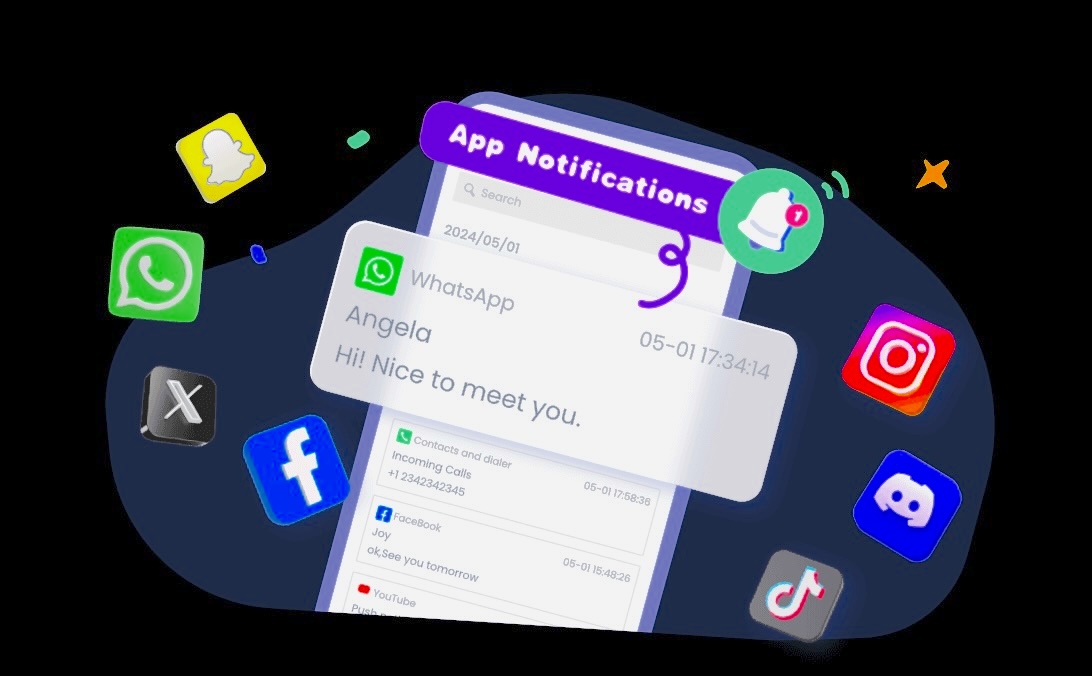

There are many situations where you may want to view call logs or text messages from another phone. You might be trying to check your own calls when your device isn’t nearby, monitor a child’s digital activity, or manage a shared family device. Whatever the reason, modern smartphones offer several built‑in tools and account‑based features that make it possible to track calls and texts responsibly and transparently.
This guide walks you through the most reliable methods available on Android and iPhone — without relying on unverified third‑party apps. All solutions here use official system tools, account sync, parental‑control apps from Google Play or the Apple App Store, or carrier services.
Before we begin, it’s important to understand that tracking another person’s device requires consent. These methods are intended for parental supervision, shared device management, and personal account access.
Why Tracking Calls and Texts May Be Necessary
People track calls and messages for a variety of legitimate reasons:
- Parents want to ensure their children are communicating safely.
- Families share devices and need access to call logs or messages across multiple phones.
- Individuals want to check their own call history from another device.
- Caregivers may need to monitor elderly family members for safety.
- Device owners want to manage multiple phones under one account.
Smartphones today offer several built‑in features that make this possible without installing untrusted apps.
Option 1: Use Parental‑Control Apps from Google Play or Apple App Store
If you’re a parent or guardian, the most reliable and policy‑compliant way to track calls and texts is through official parental‑control apps. These apps are designed for transparency, safety, and family management — not covert monitoring.
Below are two widely used, store‑verified options.
1. Google Family Link (Android & iPhone)
Google Family Link is available on both Android and iPhone and allows parents to supervise a child’s device activity. While it does not show full SMS content, it provides:
- Call activity insights (on supported devices)
- App activity
- Screen time
- Device location
- Notifications and permissions management
Download Family Link:
- Google Play:
https://play.google.com/store/apps/details?id=com.google.android.apps.kids.familylink - Apple App Store:
https://apps.apple.com/app/google-family-link/id1150085200
How to Use Family Link to Monitor Activity
- Install Family Link on your device.
- Install Family Link for Children & Teens on the child’s device.
- Link both devices using the on‑screen setup process.
- Once connected, open the parent dashboard.
- View call activity (if supported), app usage, and device notifications.
Family Link is ideal for parents who want a transparent, cooperative approach to digital safety.
2. Apple Screen Time (iPhone & iPad)
Apple’s Screen Time is built into every iPhone and iPad. When used with Family Sharing, parents can view:
- Communication safety settings
- Contacts allowed to communicate
- Messages activity
- Downtime and app limits
- Device usage patterns
While Screen Time does not display full SMS content, it helps parents manage who their child can communicate with and when.
How to Use Screen Time for Communication Monitoring
- On the parent’s iPhone, go to Settings → Family.
- Add your child’s Apple ID to your Family Sharing group.
- On the child’s device, enable Screen Time.
- Turn on Communication Limits and Communication Safety.
- Review activity from your device anytime.
Screen Time is one of the safest and most transparent ways to supervise communication on iOS.
Option 2: Use Built‑In Account Sync (Google or iCloud)
Both Android and iPhone offer powerful account‑sync features that allow you to view call logs and messages across devices logged into the same account.
This method is ideal for:
- Shared family accounts
- Personal multi‑device setups
- Parents managing a child’s device with consent
1. Google Account Sync (Android)
Android devices can sync call history and messages across devices using your Google account.
What You Can Sync
- Call history
- Messages (via Google Messages backup)
- Contacts
- Device settings
How to Enable Sync
- On the target phone, open Settings → Google → Backup.
- Enable backup for Call History and SMS Messages.
- Log into the same Google account on your own device.
- Open Google Messages or Phone to view synced data.
This method works best when managing your own devices or shared family devices.
2. iCloud Sync (iPhone)
iCloud allows you to sync messages and call logs across all Apple devices using the same Apple ID.
What You Can Sync
- iMessage and SMS
- Call history
- Contacts
- Device settings
How to Enable iCloud Sync
- On the target iPhone, go to Settings → Apple ID → iCloud.
- Enable Messages and iCloud Backup.
- Log into the same Apple ID on your device.
- Open Messages or Phone to view synced content.
This is one of the most seamless ways to track your own calls and messages across multiple Apple devices.
Option 3: Use Microsoft Phone Link (Windows + Android/iPhone)
Microsoft Phone Link allows you to connect a smartphone to a Windows PC and view:
- Call logs
- Text messages
- Notifications
- Photos
- App alerts
Download Link to Windows:
- Google Play:
https://play.google.com/store/apps/details?id=com.microsoft.appmanager - Apple App Store:
https://apps.apple.com/app/link-to-windows/id6444418208
How to Set It Up
- Open Phone Link on your Windows PC.
- Install Link to Windows on the target phone.
- Scan the QR code shown on your PC.
- Grant permissions on the phone.
- View calls and messages directly from your computer.
Phone Link is excellent for people who want to manage their own phone activity from a desktop environment.
Option 4: Use Your Cellular Carrier’s Online Dashboard
Most mobile carriers offer online account dashboards where you can view:
- Call logs
- Text logs (metadata only)
- Data usage
- Device activity
Carriers typically do not show message content, but they do show:
- Who was called
- Who sent/received texts
- Timestamps
- Duration of calls
How to Access Carrier Logs
- Log into your carrier’s website or app.
- Open the Usage or Call & Text History section.
- Select the line you want to view.
- Review call and text metadata.
This method is useful for family plans where the account holder manages multiple lines.
Option 5: Use a Second Device to View Your Own Calls and Messages
If you simply want to check your own calls or texts from another phone, you can:
- Log into your Google account
- Log into your Apple ID
- Use Phone Link
- Use your carrier’s app
- Use Google Messages for Web
These tools allow you to access your own communication data from any device you trust.
How to Protect Your Phone from Being Tracked
If you’re concerned that someone may be accessing your calls or messages without permission, here are steps to secure your device.
1. Check for Account Access
- Review devices logged into your Google or Apple account.
- Remove any unfamiliar devices.
- Change your password if needed.
2. Review App Permissions
Look for apps with access to:
- SMS
- Call logs
- Microphone
- Notifications
Disable permissions for apps you don’t recognize.
3. Disable Call Forwarding
Dial:
- ##002# to disable all forwarding
- *#21# to check forwarding status
4. Enable Two‑Factor Authentication
This prevents unauthorized access to your accounts and synced data.
5. Keep Your Phone Updated
System updates patch security vulnerabilities and help prevent unauthorized tracking.
Frequently Asked Questions
Can I track calls and texts without installing anything?
Yes. Account sync (Google or iCloud), carrier dashboards, and Phone Link allow you to view certain data without installing additional apps.
Can I see the content of someone’s text messages?
Only if the device is logged into the same Google or Apple account and syncing is enabled. Otherwise, carriers only show metadata.
Do parental‑control apps show full SMS content?
Some may show message activity, but content visibility varies by platform and permissions.
Can I track calls and texts secretly?
No. All methods in this guide require consent and transparency.
What’s the best method for parents?
Google Family Link (Android) and Apple Screen Time (iPhone) are the most reliable and policy‑compliant options.
Final Thoughts
Tracking calls and texts from another phone is entirely possible using built‑in tools, account sync, parental‑control apps from official app stores, and carrier dashboards. Whether you’re supervising a child’s device, managing your own multi‑device setup, or checking shared family activity, these methods offer safe, transparent, and effective solutions.