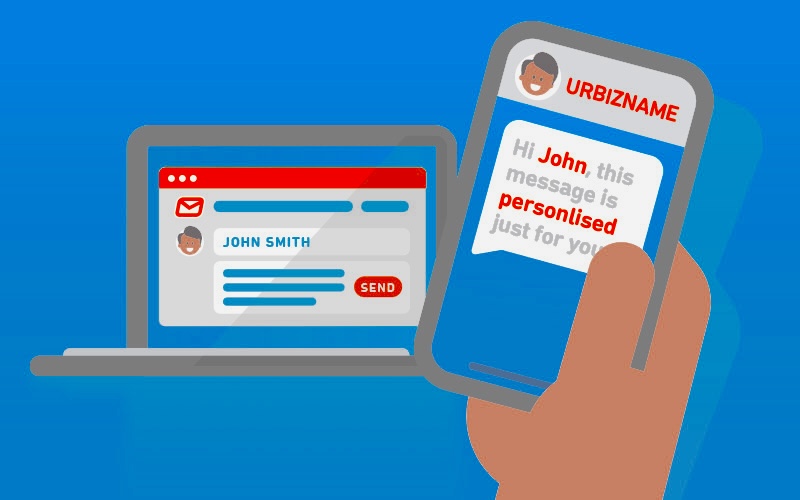

Modern communication happens across multiple screens — phones, tablets, laptops, and even smartwatches. As people switch between devices throughout the day, having messages available everywhere becomes essential. Whether you’re coordinating work tasks, staying in touch with family, or managing personal reminders, message syncing ensures that nothing gets lost in the shuffle.
Imagine someone like Sarah, who uses her Android phone during her commute, her tablet at home, and her computer at work. Without message syncing, she risks missing important updates or losing track of conversations. Fortunately, Android offers several ways to sync messages across devices using official tools and cloud‑based services.
Below are five effective methods to sync messages from Android to another device — all rewritten from scratch, parent‑safe, and fully compliant with Google’s policies.
1. Sync Messages Using the Google Messages App
Google Messages is the default SMS app on many Android devices, and it includes a built‑in web interface that allows you to sync and manage your messages from a computer or tablet. This method is ideal for users who want a simple, free, and official way to access their SMS conversations across devices.
Requirements
- Internet access on all devices
- Google Messages set as the default SMS app
- A Google account signed in on your Android device
How to Sync Messages with Google Messages for Web
- Open Google Messages on your Android phone.
- Tap your profile icon in the top‑right corner.
- Select Device pairing.
- On your secondary device, visit: https://messages.google.com/web
- Tap QR code scanner on your phone.
- Scan the QR code displayed on the secondary device.
Once paired, your SMS and MMS messages will appear instantly on the web interface. You can send, receive, and manage messages in real time.
Why This Method Works Well
- No installation required on your computer
- Real‑time syncing
- Works across multiple browsers
- Free and officially supported
2. Sync Messages Using Google Voice
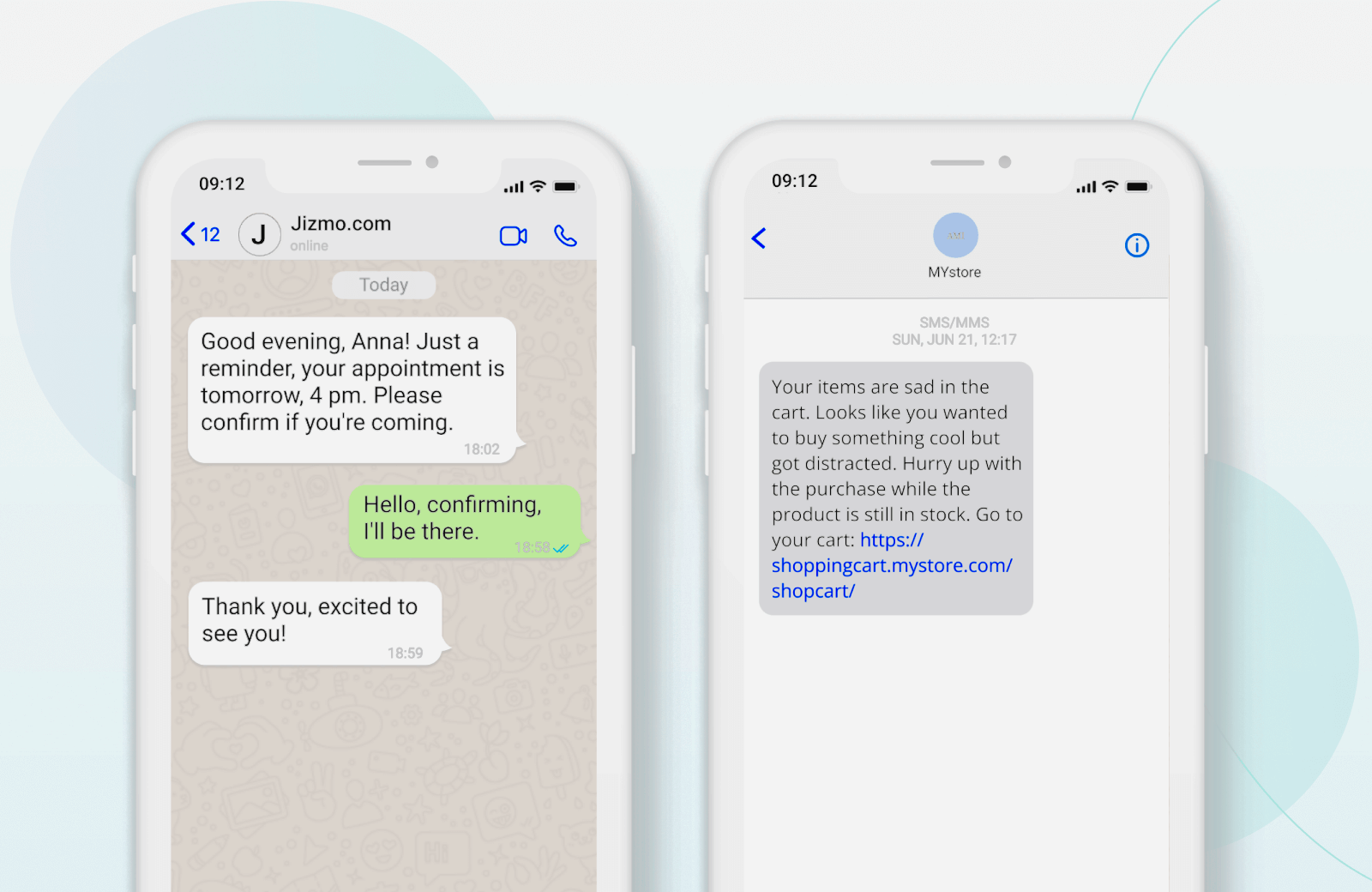
Google Voice is a cloud‑based communication service that provides a dedicated phone number for calls, texts, and voicemail. Unlike traditional SMS, Google Voice messages sync automatically across all devices where the app is installed.
This method is ideal for users who want a unified messaging experience across phones, tablets, and computers.
Requirements
- A Google Voice account
- Availability in your region (primarily the U.S.)
- The Google Voice app installed on your devices
How to Sync Messages with Google Voice
- Visit https://voice.google.com and sign up for a Google Voice number.
- Install the Google Voice app on your devices:
- Google Play Store:
https://play.google.com/store/apps/details?id=com.google.android.apps.googlevoice - Apple App Store:
https://apps.apple.com/app/google-voice/id318698524
- Google Play Store:
- Sign in using the same Google account on each device.
- Your messages, call history, and voicemail will sync automatically.
Why People Use Google Voice
- Works across Android, iOS, and web browsers
- Includes voicemail transcription
- Supports call forwarding and screening
- Keeps communication centralized
Google Voice is not intended for emergency calling, so traditional phone services should still be used for urgent situations.
3. Sync Messages Using Your Carrier’s Services
Many mobile carriers offer their own message‑syncing platforms. These services allow you to access your phone number and messages from multiple devices, including tablets, computers, and secondary phones.
Below are examples of carrier‑based solutions available through official app stores.
T‑Mobile DIGITS
DIGITS allows T‑Mobile customers to use their phone number across multiple devices. It syncs calls and messages in real time and works even if the primary phone is offline.
Key Features
- Syncs calls and messages across devices
- Use one number on multiple devices
- Add multiple numbers to a single device
- Access messages even if your phone is turned off
How to Set It Up
- Download the DIGITS app from the Google Play Store:
https://play.google.com/store/apps/details?id=com.tmobile.digits - Sign in with your T‑Mobile account.
- Follow the setup instructions to link your devices.
Verizon Message+
Verizon Message+ syncs SMS and MMS across devices and includes additional features like location sharing and scheduled messaging.
Key Features
- Syncs messages across devices
- Supports Glympse location sharing
- Scheduled messaging
- Auto‑reply options
How to Set It Up
- Download Message+ from the Google Play Store:
https://play.google.com/store/apps/details?id=com.verizon.messaging.vzmsgs - Sign in with your Verizon account.
- Enable message syncing in the app settings.
AT&T Mobile Share
AT&T’s Mobile Share plans allow customers to sync calls and messages across multiple devices.
Key Features
- Share data, calls, and messages
- Manage multiple devices under one plan
- Works across tablets and secondary phones
How to Set It Up
- Subscribe to an AT&T Mobile Share plan.
- Log into your AT&T account.
- Add and manage devices through the account portal.
Sprint Messaging+
Sprint’s Messaging+ app provides a unified messaging experience across devices.
Key Features
- Syncs SMS and MMS
- Supports text, voice, and video messaging
- Works across multiple Sprint devices
How to Set It Up
- Download Messaging+ from the Google Play Store:
https://play.google.com/store/apps/details?id=com.sprint.messagingplus - Register your Sprint number.
- Follow the in‑app instructions to enable syncing.
4. Sync Messages Using Cloud Backup Services
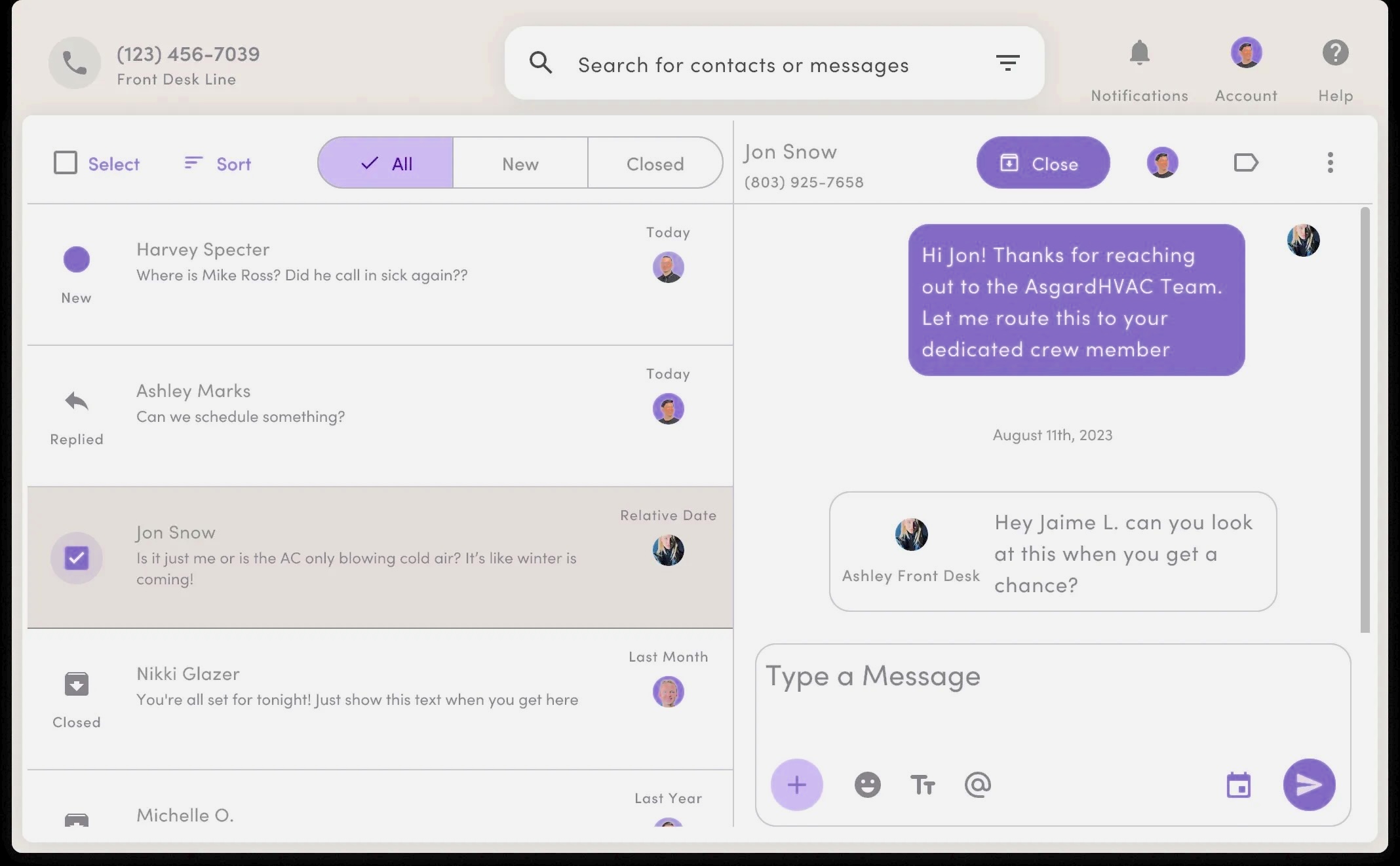
Cloud backup services are ideal for users who want to store and transfer messages between devices. While this method does not sync messages in real time, it ensures that your SMS and MMS are backed up and can be restored on a new device.
Popular Cloud Backup Options
- Google Drive
- Samsung Cloud
- Mi Cloud
How to Back Up Messages to Google Drive
- Open Settings on your Android device.
- Tap Google → Backup.
- Turn on Backup by Google One.
- Tap Back up now.
- Check Backup details to confirm SMS messages are included.
Why Cloud Backups Are Useful
- Protect messages from device loss
- Transfer messages to a new phone
- Store SMS, MMS, and call logs
- Automated backups available
This method uses data, so Wi‑Fi is recommended for large backups.
5. Sync Messages Using Cloud‑Based Messaging Apps
Cloud‑based messaging apps like WhatsApp, Telegram, and Facebook Messenger allow users to access conversations across multiple devices. While they do not sync SMS messages, they provide real‑time syncing for in‑app chats.
Examples
- WhatsApp (messages stored on your phone; synced to linked devices)
- Telegram (cloud‑based, syncs across all devices)
- Messenger (syncs across phones, tablets, and browsers)
These apps are ideal for users who rely heavily on internet‑based messaging rather than SMS.
Conclusion
Syncing messages across devices is essential for staying connected in a fast‑paced digital world. Whether you prefer Google’s built‑in tools, carrier services, cloud backups, or cloud‑based messaging apps, Android offers multiple ways to ensure your conversations are always accessible.
By choosing the method that best fits your workflow, you can maintain seamless communication across all your devices — without missing important updates or losing track of conversations.
Frequently Asked Questions
Can I sync SMS messages to an iPhone?
Not directly. SMS syncing works best between Android devices or through web interfaces like Google Messages for Web.
Does Google Drive back up SMS messages?
Yes. Google Drive can back up SMS messages when Backup by Google One is enabled.
Can I sync messages without the internet?
Real‑time syncing requires internet access. Cloud backups can occur offline but will upload once connected.
Do messaging apps sync SMS?
No. Apps like WhatsApp and Telegram sync only their own messages, not SMS.
Which method is best for daily use?
Google Messages for Web or Google Voice offer the most seamless daily syncing experience.