
Smartphones hold our entire digital lives. From banking applications and work emails to irreplaceable family photos and private messages, the data stored on a mobile device is immense. Consequently, the moment you realize your phone is missing—whether it slipped between the couch cushions or was left on a public transit seat—is accompanied by an immediate sense of panic.
Fortunately, modern operating systems have evolved to address this exact scenario. You do not need to rely on expensive subscription services, private investigators, or questionable tracking websites to locate your device. The Android ecosystem is equipped with highly accurate, built-in location technologies designed to help you find your hardware quickly and securely.
This comprehensive guide breaks down exactly how to track an Android phone for free. By utilizing integrated Google services, manufacturer-specific tracking networks, and official applications available directly on the Google Play Store, you can locate, lock, or erase your device without spending a dime.
The Technology Behind Android Device Tracking
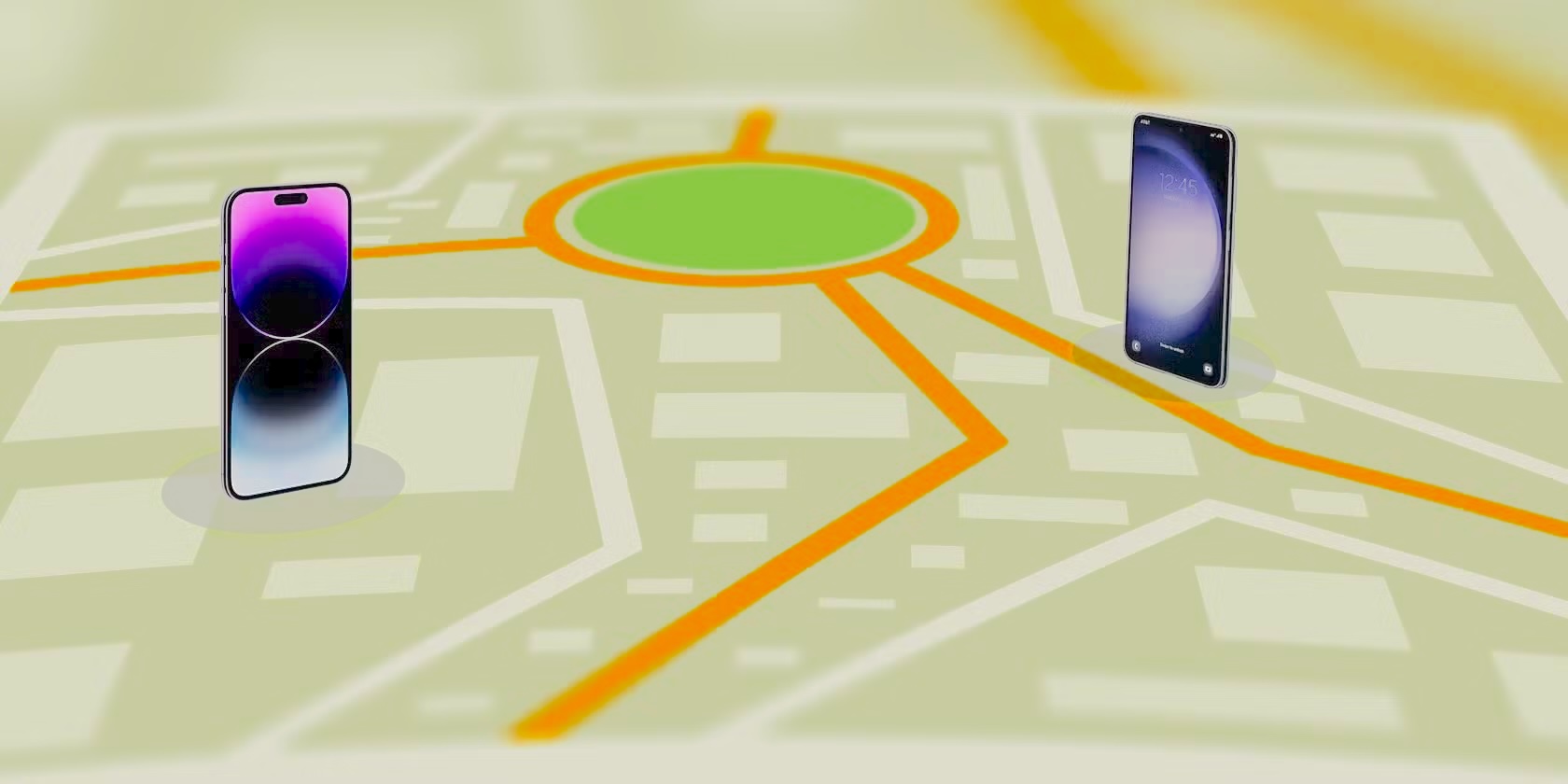
Before diving into the specific methods, it helps to understand how your phone calculates and broadcasts its location. Android devices do not rely on a single tracking method; instead, they use a combination of three distinct technologies to provide pinpoint accuracy:
-
Global Positioning System (GPS): Your phone contains a receiver that communicates with satellites orbiting the Earth. By calculating the distance from at least four satellites, the device triangulates its exact geographical coordinates. GPS is highly accurate outdoors but can struggle inside dense buildings.
-
Wi-Fi Positioning System (WPS): Even if you are not actively connected to a Wi-Fi network, your phone’s antenna continuously scans for nearby routers. Google maintains a massive database mapping the physical locations of millions of Wi-Fi routers globally. By comparing the routers your phone detects against this database, the system can determine your location, which is particularly useful indoors.
-
Cell Tower Triangulation: If GPS and Wi-Fi fail, your device calculates its distance from the nearest cellular towers maintained by your mobile carrier. While this provides a broader radius rather than a pinpoint location, it is a crucial fallback mechanism.
By layering these technologies, native tracking applications provide real-time, accurate location data on a digital map.
Method 1: Google Find My Device (The Universal Standard)
Google’s “Find My Device” is the primary, universal tracking solution for the Android ecosystem. Because Google develops the Android operating system, this service is baked directly into the core of the software. It is completely free, highly secure, and requires no third-party installations.
To use this service, you can either log into the web portal from a computer or use the official application on another device.
Prerequisites for Find My Device
For Google Find My Device to successfully locate your hardware, several conditions must be met prior to the device going missing. In most modern Android setups, these are enabled by default, but it is wise to verify them:
-
The device must be powered on.
-
It must be signed into your Google Account.
-
It must be connected to mobile data or a Wi-Fi network.
-
It must be visible on Google Play.
-
“Location” services must be turned on.
-
“Find My Device” must be activated in your security settings.
Step-by-Step Tracking Instructions
If your phone is missing, follow these steps to locate it:
-
Access the Portal: Open a web browser on any computer or secondary smartphone and navigate to
android.com/find. Alternatively, you can download the official Find My Device app from the Google Play Store on a friend or family member’s phone. -
Authenticate: Log in using the exact Google Account credentials associated with the missing phone.
-
Select Your Device: If you have multiple devices linked to your account (like a tablet or a smartwatch), select the specific missing phone from the device list at the top of the screen.
-
View the Map: The service will immediately attempt to contact the phone. Once connected, the device’s location will appear as a green pin on an interactive map. The sidebar will display the phone’s current battery life and the Wi-Fi network it is connected to.
Remote Security Actions
Locating the phone is only the first half of the solution. If the map shows your phone is in an unfamiliar or public location, Google provides three critical remote actions:
-
Play Sound: Even if your phone is set to silent or vibrate, triggering this option will force the device to ring at maximum volume for five consecutive minutes. This is ideal if the map shows the phone is inside your house but you cannot physically find it.
-
Secure Device: This option remotely locks your phone using your existing PIN, pattern, or password. If you did not have a lock screen set up, you can create one remotely. Furthermore, you can display a custom recovery message and a contact phone number directly on the lock screen, allowing a good Samaritan to call you without accessing your private data.
-
Erase Device: If you believe the phone is stolen or permanently lost, this is the nuclear option. Selecting this will permanently delete all data, photos, applications, and accounts from the device’s internal storage. Note: Once the device is erased, Find My Device will no longer work.
Download Link: Get Google Find My Device on Google Play
Method 2: Retracing Steps with Google Maps Timeline
Find My Device requires the phone to be powered on and connected to the internet. But what happens if the battery died an hour ago? This is where Google Maps Timeline becomes an invaluable investigative tool.
Google Maps continuously logs your location history in the background (provided you have the “Location History” setting enabled in your Google account). While it will not give you a real-time ping of a dead device, it will show you exactly where the phone was moments before it lost power or connectivity.
How to Access Your Timeline
-
Open Google Maps on a desktop computer or another mobile device.
-
Ensure you are logged into the Google Account associated with the lost phone.
-
Click on your profile picture or the menu icon, and select Your Timeline.
-
Select the current date from the calendar interface.
The map will display a detailed, chronological path of everywhere your phone traveled that day. By looking at the final recorded data point before the signal dropped, you can narrow down your search radius significantly. If the timeline ends abruptly at a specific coffee shop or transit station, that is where your physical search should begin.
Method 3: Manufacturer-Specific Tracking Tools
While Google’s tools are universal, several major Android hardware manufacturers build their own proprietary tracking networks directly into their custom user interfaces. These often provide features that Google’s native app does not—most notably, the ability to track a phone even when it is entirely offline.
Samsung SmartThings Find (Formerly Find My Mobile)
Samsung is the largest Android manufacturer globally, and their proprietary tracking system, SmartThings Find, is arguably the most powerful native locator on the market.
What sets Samsung apart is its “Offline Finding” network. If a Galaxy phone is lost and disconnected from cellular data or Wi-Fi, it will emit a low-energy Bluetooth signal. Other nearby Samsung Galaxy devices belonging to strangers will silently pick up this signal and report your phone’s location back to Samsung’s servers. You can then view this location on your map, completely securely and anonymously.
How to Use SmartThings Find:
-
Navigate to
smartthingsfind.samsung.comon any web browser. -
Log in using your Samsung Account credentials (not your Google Account).
-
Select your missing Galaxy device from the left-hand menu.
-
View the real-time or last known location on the map.
-
Execute remote commands: You can ring the device, lock it, track its movement in 15-minute intervals, back up your data remotely to Samsung Cloud, or retrieve your call and message logs to see if a thief has been using the device.
Xiaomi and Redmi: Find Device
If you operate a device running Xiaomi’s MIUI or HyperOS, you have access to Xiaomi Cloud services. Similar to Samsung, Xiaomi requires you to have set up a Mi Account prior to losing the device.
How to Use Xiaomi Find Device:
-
Visit
i.mi.comon a web browser. -
Log in with your Mi Account ID and password.
-
Click on the Find Device icon.
-
The interface will locate your phone on the map, offering standard options to sound an alarm, activate “Lost Mode” (which locks the device and updates location continuously), or wipe the data entirely.
Motorola, OnePlus, and Others
For brands like Motorola, OnePlus, Vivo, and Sony, the reliance falls back on Google’s ecosystem. These manufacturers utilize near-stock versions of Android or custom interfaces that heavily integrate Google Mobile Services. Therefore, if you lose a Motorola or OnePlus device, you will default to using the standard Google Find My Device portal outlined in Method 1.
Method 4: Official Family Tracking Applications
If your goal is not finding a lost device, but rather keeping track of a family member’s Android phone for safety reasons, you should utilize official family management applications.
It is critical to avoid searching for random “phone tracker” applications on the web, as third-party APKs often contain malware, aggressive advertising, or privacy-invading data harvesting scripts. Instead, rely exclusively on official tools vetted by the Google Play Store.
Google Family Link
For parents looking to track their children’s devices for free, Google Family Link is the safest, most robust option available. It is fully compliant with modern privacy standards and integrates directly into the Android OS, meaning a child cannot easily delete it or bypass its tracking.
Core Location Features in Family Link:
-
Real-Time Tracking: View your child’s precise location on a map from your own device at any time.
-
Geofencing Alerts: You can set up specific boundaries (like a school campus or a home address). The app will send an automated push notification to your phone the moment your child’s device enters or leaves the designated zone.
-
Battery Monitoring: The map view also displays the target device’s battery percentage, so you know if they are about to go offline.
Beyond location tracking, Family Link provides comprehensive parental controls, allowing you to manage screen time, block inappropriate applications, and review digital habits—all entirely for free.
Download Link: Get Google Family Link on Google Play
What to Do When Tracking Fails
Despite the best technology, there are scenarios where a phone cannot be tracked. If the phone is completely destroyed, factory reset by a sophisticated thief, or buried deep underground where signals cannot reach, your tracking map will go dark.
If you have utilized Find My Device and Google Maps Timeline and determined the phone is unrecoverable, you must immediately pivot from recovery to damage control.
Step 1: Secure Your Accounts
Log into your Google Account from a computer and navigate to the Security dashboard. Under the “Your Devices” tab, find the lost phone and select “Sign out.” This revokes the device’s access to your Gmail, Google Drive, and Chrome passwords. Repeat this process for all major social media and banking applications.
Step 2: Contact Your Wireless Carrier
Call your mobile network provider immediately. They can suspend your cellular service, preventing a thief from making international calls, racking up data charges, or using your phone number to intercept SMS-based two-factor authentication codes.
Step 3: Block the IMEI
Every mobile phone has an International Mobile Equipment Identity (IMEI) number—a unique 15-digit serial code assigned to the hardware. When you contact your carrier, ask them to blacklist the device’s IMEI.
Once an IMEI is blacklisted, the phone is essentially bricked on a network level. It will not be able to connect to any cellular tower, even if the thief removes your SIM card and inserts a new one. (Pro tip for your next phone: dial *#06# on your keypad right now, write down the IMEI number that appears, and store it safely in a physical notebook).
Frequently Asked Questions
Can I track an Android phone using only its phone number? No, an everyday user cannot track a smartphone’s precise GPS location simply by typing the phone number into a website. Any service claiming to offer this for free is likely a scam designed to steal your data. Only mobile network operators and law enforcement agencies have the technical capability and legal authority to triangulate a device using its active phone number via cell tower pings.
Can I track an Android phone using its IMEI number? Similar to tracking by phone number, you cannot personally input an IMEI into an app to see it on a map. The IMEI is used by network carriers to identify hardware and block it from accessing their networks. If your phone is stolen, you provide the IMEI to the police for their reports, and to your carrier to blacklist the device.
Can I track an Android phone from another Android phone? Absolutely. You can open a mobile web browser on a friend’s Android phone and log into the Google Find My Device website, or you can download the Find My Device app from the Google Play Store and select “Sign in as guest” to input your credentials and locate your missing hardware.
Will Find My Device work if the phone is turned off? Historically, no. If the phone had no power, it could not broadcast a signal. However, both Samsung (via SmartThings Find) and Google are rolling out offline finding networks that utilize Bluetooth low energy. If your device supports this feature and has a tiny reserve of battery left, it can ping nearby devices to report its location even when powered down. If it is completely dead, your best option is checking your Google Maps Timeline for its last known location.