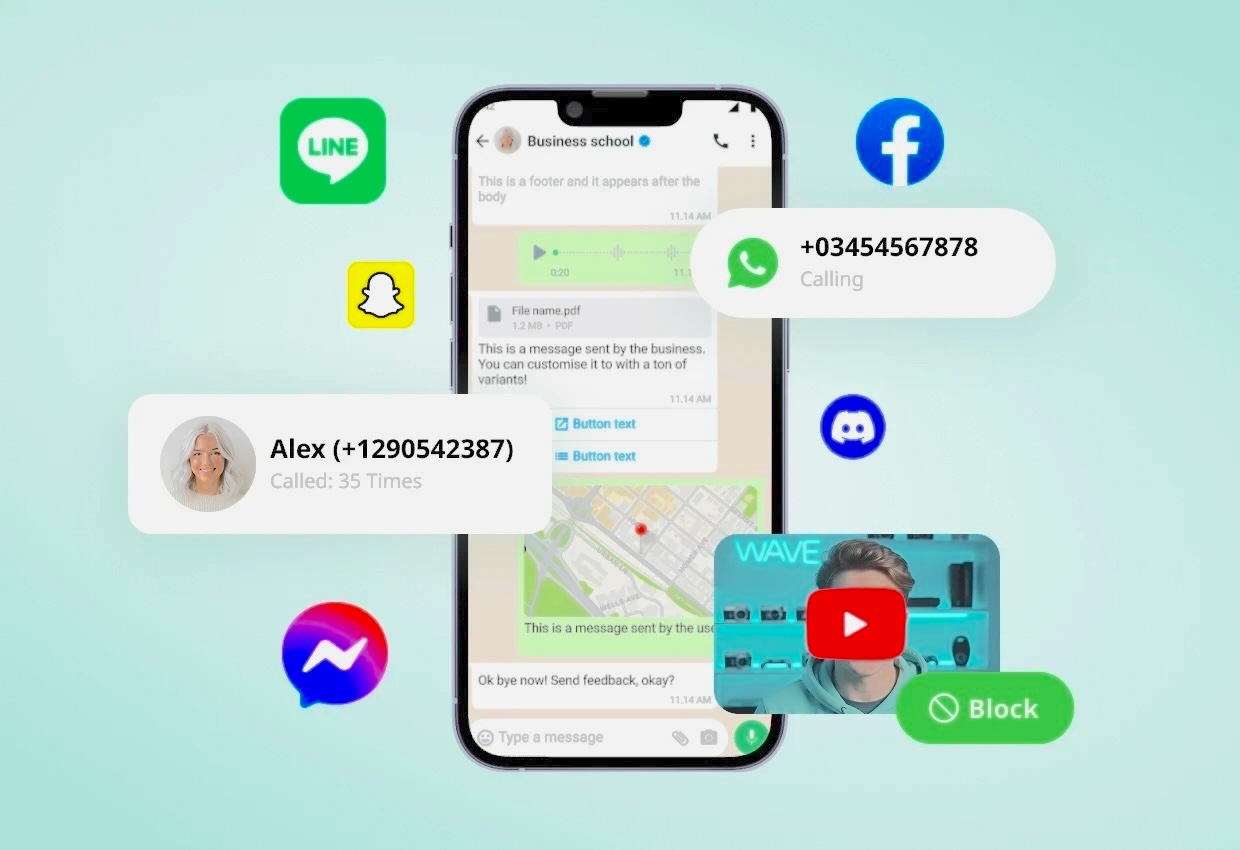

Children today grow up surrounded by smartphones, tablets, and computers. While technology offers incredible learning opportunities, it also exposes young users to inappropriate content, excessive screen time, and online risks. Parental controls help families create healthier digital habits by setting boundaries, filtering content, and monitoring device usage.
This guide explains what parental controls are, why they matter, and how to set them up — and turn them off — on Android, iOS, and Windows devices. Everything is written clearly and practically so parents and guardians can follow along with confidence.
What Are Parental Controls?
Parental controls are settings that allow parents or guardians to manage how children use smartphones, tablets, and computers. These controls vary by operating system but typically include:
- Screen time limits
- App and game restrictions
- Age‑based content filters
- Purchase and download controls
- Website blocking
- Privacy and communication settings
Parental controls help families create a safer digital environment and encourage responsible device use.
Why Parental Controls Matter
Children benefit from structure when using technology. Parental controls help:
- Reduce exposure to harmful or age‑inappropriate content
- Prevent excessive screen time
- Protect sleep schedules and reduce eye strain
- Limit impulsive purchases
- Encourage healthy digital habits
- Support open communication between parents and children
Many families also create a family tech agreement, outlining expectations for device use, online behavior, and screen time routines.
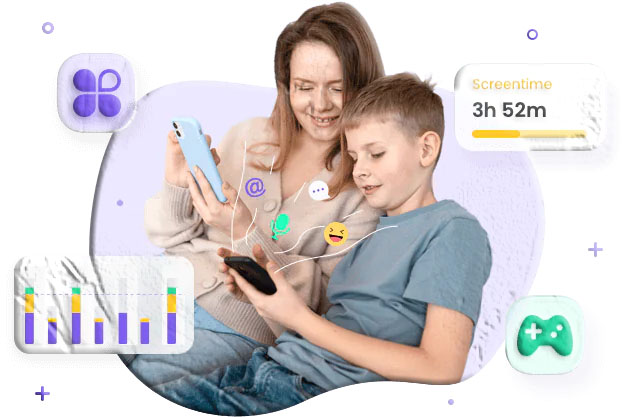
How to Set Up and Turn Off Parental Controls on Android (Google Play)
Google Play includes built‑in parental controls that restrict apps, games, and media based on age ratings.
How to Set Up Parental Controls on Google Play
- Open the Google Play Store.
- Tap your profile icon in the top‑right corner.
- Go to Settings → Family → Parental controls.
- Toggle Parental controls ON.
- Create a 4‑digit PIN that your child does not know.
- Under Set content restrictions, choose:
- Apps & games
- Books
- Select the maximum allowed age rating and save your settings.
These restrictions apply only to the Google Play Store, not to apps already installed.
How to Turn Off Parental Controls on Google Play
- Open Google Play Store → Settings → Family → Parental controls.
- Toggle Parental controls OFF.
- Enter the PIN you created earlier.
Once disabled, your child can access all content allowed by their device’s general settings.
How to Set Up and Turn Off Parental Controls on iPhone and iPad (iOS)
Apple’s parental controls are part of Screen Time, a feature built into every iPhone and iPad.
How to Set Up Parental Controls on iOS
- Open Settings.
- Tap Screen Time.
- Select Content & Privacy Restrictions.
- Enter your Screen Time passcode (or create one if prompted).
- To set age restrictions for apps:
- Tap Content Restrictions → Apps
- Choose the allowed age range
- To restrict purchases:
- Go to iTunes & App Store Purchases
- Set Installing Apps, Deleting Apps, or In‑App Purchases to Don’t Allow
These settings help prevent accidental purchases and limit access to apps that may not be age‑appropriate.
How to Turn Off Parental Controls on iOS
- Open Settings → Screen Time.
- Scroll down and tap Turn Off Screen Time.
- Enter your Screen Time passcode.
This removes all restrictions and resets Screen Time settings.
How to Set Up and Turn Off Parental Controls on Windows
Windows includes Family Safety, a feature that helps parents manage screen time, app usage, and web browsing on a child’s PC.
How to Set Up Parental Controls on Windows
- Log in with your parent/guardian Microsoft account.
- Open Settings → Accounts.
- Select Family & other users.
- Click Add a family member and add your child’s account.
- Once added, choose the child’s profile and enable:
- Screen time limits
- App and game restrictions
- Web filtering
- Purchase controls
You can manage these settings from the Windows PC or through your Microsoft Family dashboard online.
How to Turn Off Parental Controls on Windows
- Open Settings → Accounts → Family & other users.
- Select your child’s account.
- Turn OFF any restrictions you previously enabled.
This restores full access to apps, websites, and screen time.
Optional Apps for Parental Controls (Google Play & App Store)
If you want additional features beyond built‑in controls, you can explore parental control apps available on Google Play or the App Store. These apps offer tools such as:
- Screen time management
- App blocking
- Location sharing
- Web filtering
Examples available on official stores include:
- Google Family Link (Google Play / App Store)
- Microsoft Family Safety (Google Play / App Store)
These apps are widely used and supported by major platforms.
FAQs About Parental Controls
What happens if I forget my parental control PIN?
On Android and iOS, you may need to reset your account password or use account recovery options to regain access.
Do parental controls block all inappropriate content?
They significantly reduce exposure but cannot guarantee 100% filtering. Supervision and communication remain essential.
Can I set different restrictions for each child?
Yes. Android, iOS, and Windows all allow separate profiles with unique settings.
Do parental controls affect school apps or homework tools?
Only if those apps fall under restricted categories. You can manually allow specific apps.
Can parental controls limit screen time?
Yes. iOS Screen Time and Windows Family Safety include daily limits and schedules.
Are parental controls visible to children?
Most restrictions are visible, but some settings (like purchase limits) operate quietly in the background.
Conclusion
Parental controls are powerful tools that help families create safer, healthier digital habits. Whether your child uses an Android phone, an iPhone, or a Windows computer, each platform offers built‑in features that allow you to manage screen time, filter content, and guide responsible device use.
By understanding how these controls work — and how to turn them off when needed — you can support your child’s digital growth while maintaining a balanced and secure environment.